
Step 1:
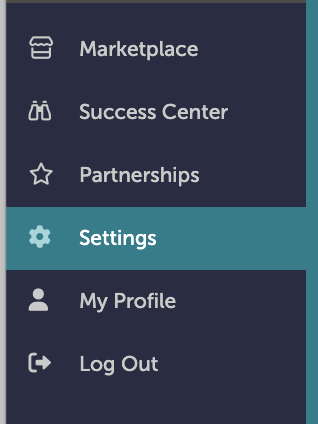
On the left-hand navigation bar, scroll down to “Settings”.
Step 2:
In the Settings window under General, click “Custom Fields”.

Step 3:
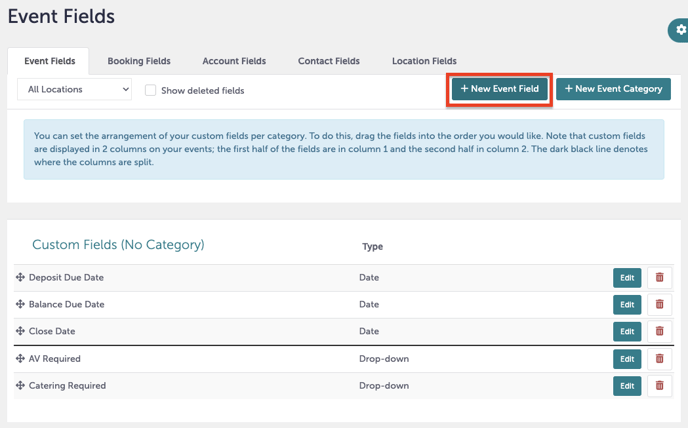
You will now be taken to the “Event Fields” page. From here, you can choose to add your custom field to either Events, Bookings, Accounts, Contacts, or Locations.

Step 4:
We will create a new Event Field. Click “+New Event Field”.
Step 5:
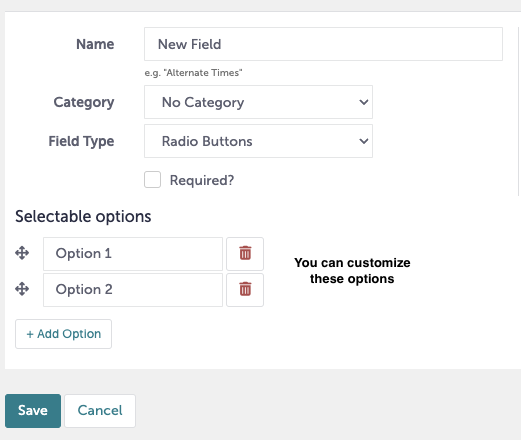
You will now see a window that says “New Event Field”. From here, you will select the locations this field will show up for, name the field, add a field type, and determine whether or not this is required.

Step 6:
If your field type requires further setup (example, Radio Buttons), you will be able to edit the selectable options that appear.
Step 7:
Click “Save” when you are done.
Step 8:
Was this article outdated or incorrect? Suggest a revision! Still need help? Submit a ticket!