
Step 1:
Navigate to the booking you want to apply a discount to. Navigate to the "Master Docs" tab.
Step 2:
Click the gear icon and hit "Edit". 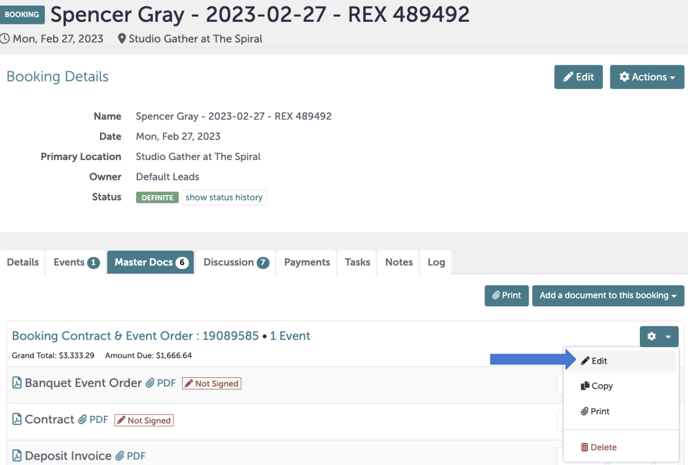
If you have not yet created your Master Docs, please refer to this Knowledge Base article to create your Master Docs.
Step 3:
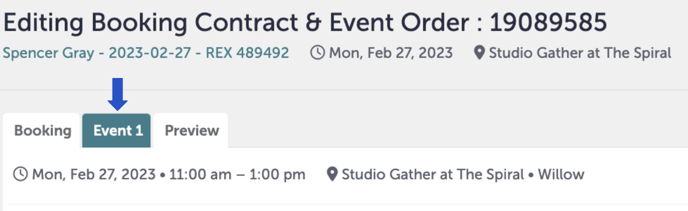
Regardless of if you're editing existing documents or creating new ones from scratch, the process to apply a discount is the same. Click the tab in the editing window that will take you to the event you want to edit. Below, we are editing "Event 1".
Step 4:
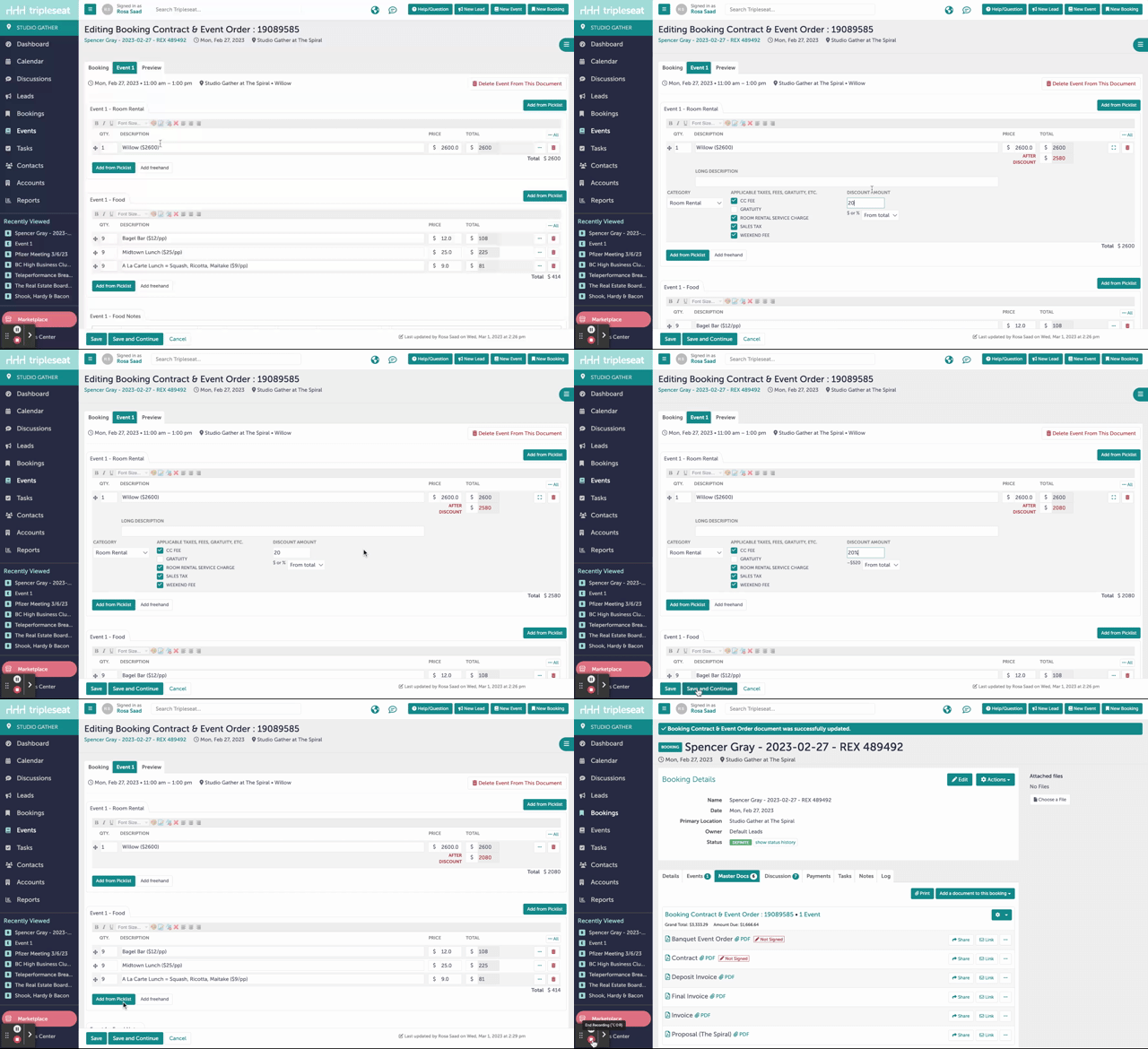
From here, either add the picklist item or open an existing picklist item. In the example below, we are modifying an existing picklist item. Click the three dots "..." next to the item to expand this window.

Step 5:
Once expanded, you will see a box that says "Discount Amount". It is defaulted to dollars. If you would like to add a percentage amount, you must add a % next to the value.
Before navigating away, confirm that a new red total and a red "After Discount" text has appeared.
Step 6:
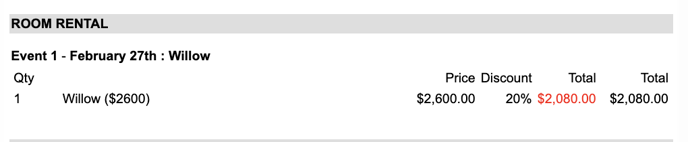
You can confirm that these discounts have been applied by reviewing the deposit invoice, invoice, or final invoice. The deposit should be reflected near the picklist options.
Step 7:
Was this article outdated or incorrect? Suggest a revision! Still need help? Submit a ticket!