
Step 1:
The guest portal will not be activated unless a document has been shared with the client first.
For a review on how to create Master Docs, please refer to this Knowledge Base article.
Step 2:
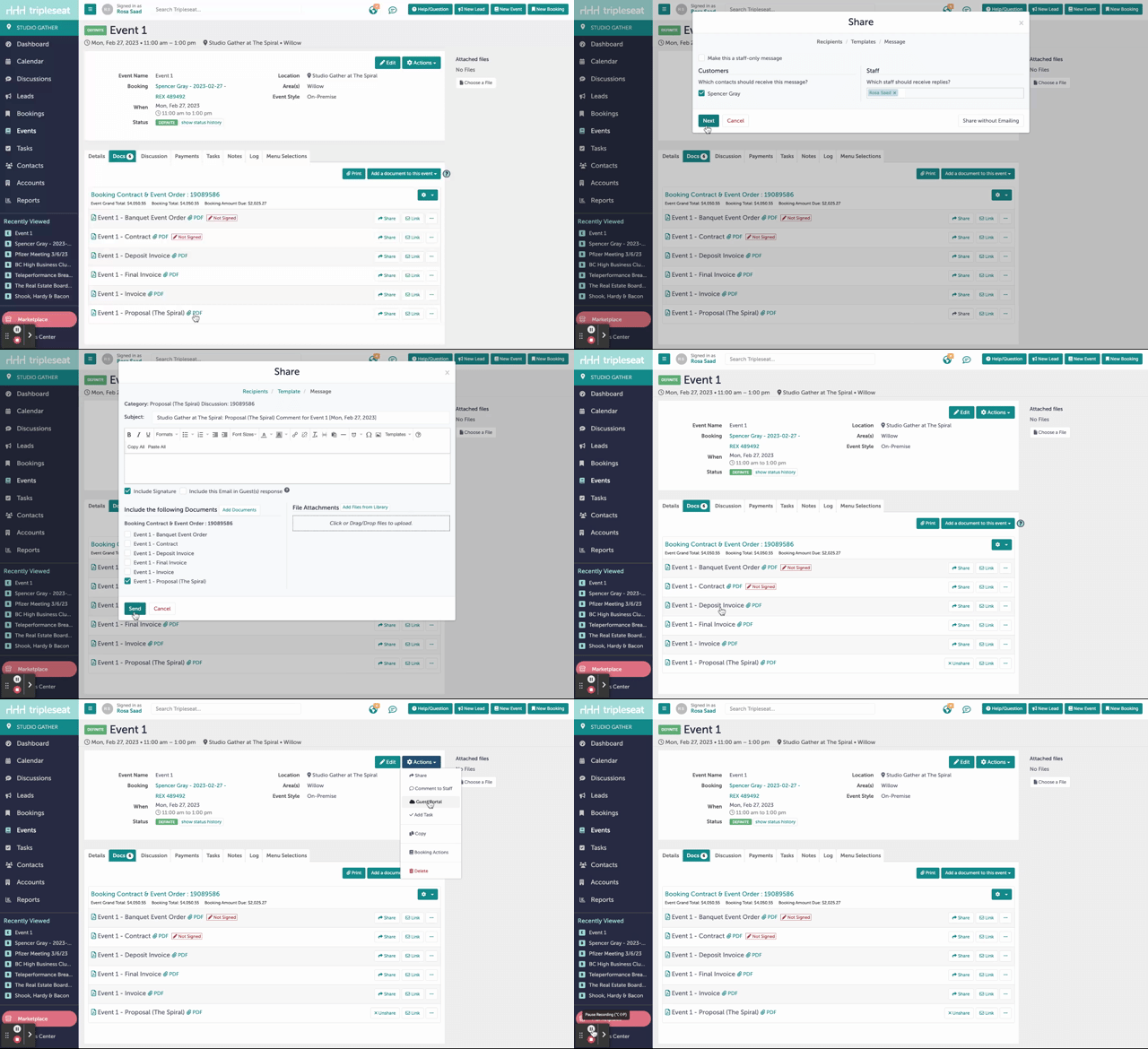
To share the document, navigate to the "Master Docs" tab in any booking. In this tab, multiple documents will be available. The first document to be shared with a client will be the Proposal. Click "Share" next to the document you would like to share.
Step 3:
The guest will receive an email notification with a link. If they click that link, it will take them directly to the file. If they navigate to their guest portal (below), they will also be able to see all documents that have been shared with them under the "Documents" tab on the left hand navigation bar.
.gif?width=640&height=390&name=Events%20-%20Studio%20Gather%20-%20Tishman%20Speyer%20-%20Tripleseat%20(2).gif)
Step 4:
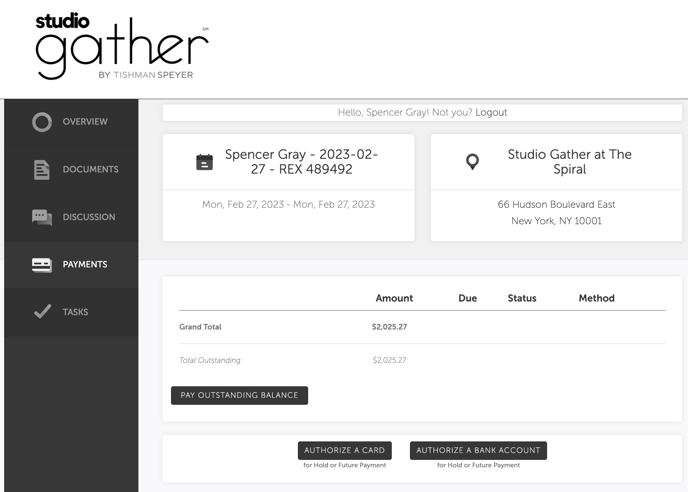
In the guest portal, the guest can authorize a credit card or bank account to cover any deposits or charges. They can navigate to this page under "Payments" on the left hand navigation menu.
Step 5:
Lastly, you can also use the guest portal to communicate with the guest.
Please refer to this Knowledge Base article for more details around client communication through the Guest Portal.
Step 6:
Was this article outdated or incorrect? Suggest a revision! Still need help? Submit a ticket!