
Step 1:
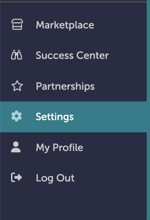
On the left-hand navigation bar, scroll down to “Settings”.
Step 2:
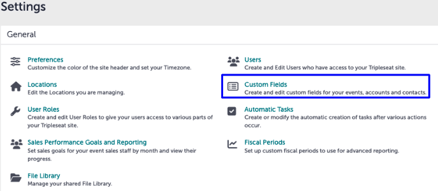
In the Settings window under General, click “Custom Fields”.
Step 3:
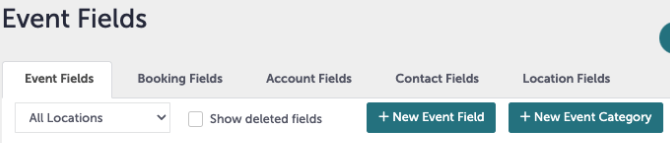
You will now be taken to the “Event Fields” page. From here, you can choose to add your custom field to either Events, Bookings, Accounts, Contacts, or Locations.
Step 4:
We will create a new Event Field. Click “+New Event Field”.
Step 5:
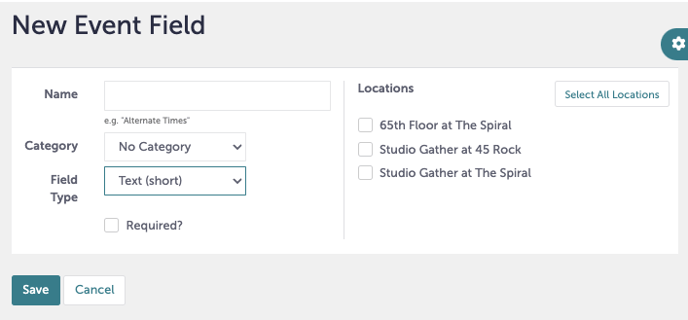
You will now see a window that says “New Event Field”. From here, you will select the locations this field will show up for, name the field, add a field type, and determine whether or not this is required.
Step 6:
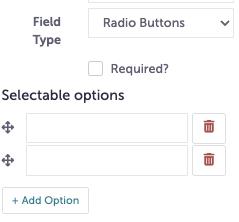
If your field type requires further setup (example, Radio Buttons), you will be able to edit the selectable options that appear. You can delete any mistakes by clicking the Red Trash can icon.
Step 7:
Click “Save” when you are done.
Step 8:
Was this article outdated or incorrect? Suggest a revision! Still need help? Submit a ticket!