
Step 1 -
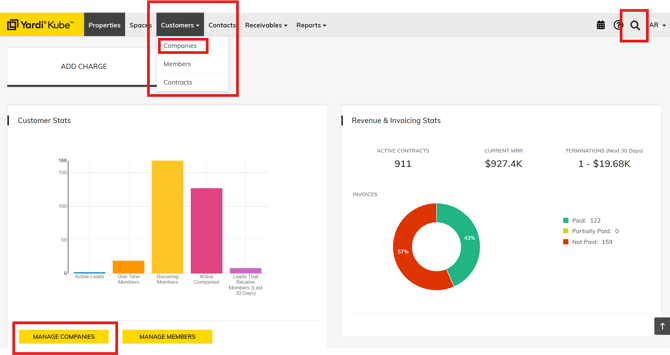
Open the company overview in Yardi. There are many ways to get to companies.
Step 2 -
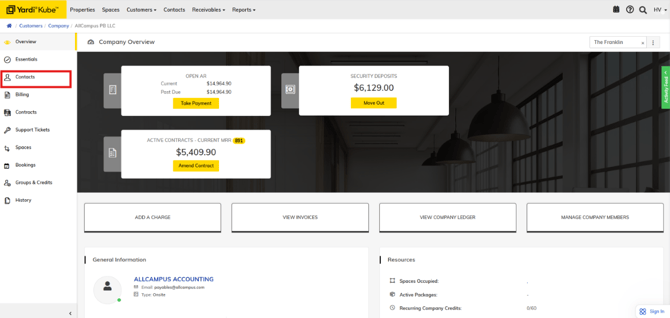
Select "Contacts" on the left-hand menu.
Step 3 -
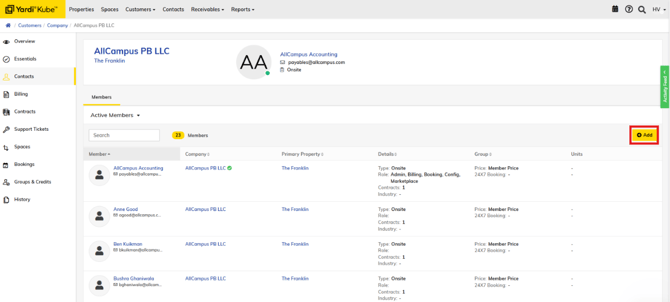
Click "Add" on the right hand side of the page.
Step 4 -
Enter the following required information about the member:
- First Name
- Last Name
- Member Type
- On-site: A member who works out of the Studio space
- Virtual: A member of the company who does not work in the Studio space (ie: a CEO who signed the contract, but lives in another state) -OR- service emails (info@, accountspayable@)
- Change Assigned Internal User to your Studio location's email.
- Company & Primary Property should automatically populate if you navigate from the company tab. If you navigate from "Customers" -> "Members" you will need to assign the company.
- Save the Contact, then click the pencil to edit the contact and add permission levels. At the bottom of the create page you can select which permissions to assign to this member including:
- Booking (allowed to use company credits)
- Billing (can view and pay invoices)
- *Be sure to add Billing as a Team in VTS/Your Studio App*
- Admin (all permission given)

PLEASE NOTE:
Onsite teams WILL still need to submit a badge request for building access.
If you make an error in the email - edit the contact, and submit a Hubspot ticket to reinvite the contact to the Studio App.