
Step 1
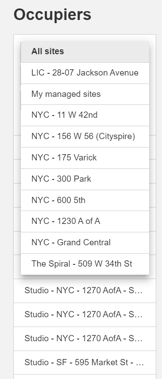
Open Platform and change your site to the correct location if applicable.
Step 2
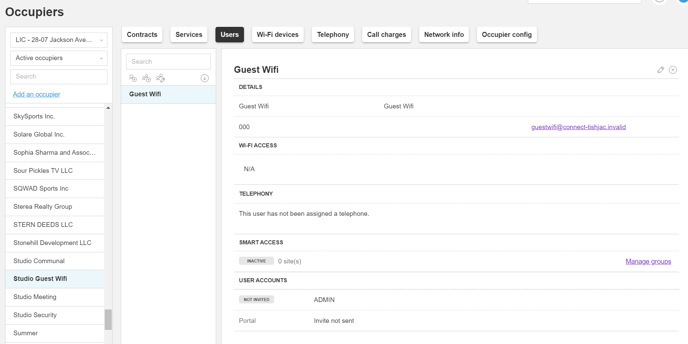
Search and select the Account the member works for so it's highlighted in blue.
Step 3
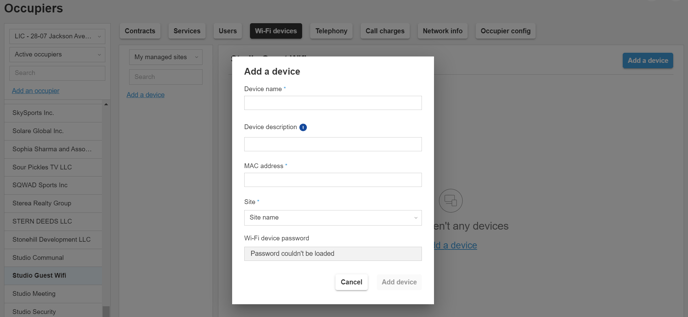
Locate the MAC address of the device you are looking to add. It may be located on the physical device itself or listed in the settings menu. This number will be entered in the MAC Address field of the pop-up screen when you click "Add a Device"
Step 4
Click on the Wi-Fi Devices tab and click "Add a Device"
Step 5
Type in the device name, MAC Address, and site location (Studio site)
A password "addmyd3vic3!" will populate in the box. This is the new password for the Wi-Fi MAC network that the device will join.
Tip: Users should NOT use their personal Wi-Fi credentials from Essensys to add their devices.

Step 6
Using the device you would like to add (through its app or on the device itself), select the Wi-Fi - MAC network and input the password "addmyd3vic3!" and it should connect!
Was this article outdated or incorrect? Suggest a revision! Still need help? Submit a ticket!