
Step 1:
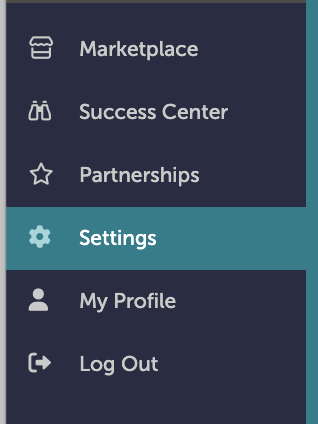
On the left-hand navigation bar, scroll down to “Settings”.
Step 2:
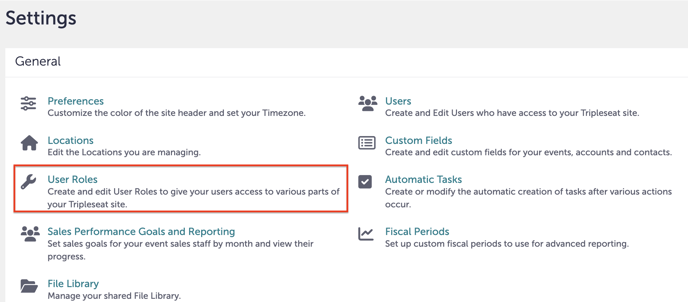
In the Settings window under “General”, click “User Roles”.
Step 3:
Scroll down to choose the access you want the user role to have. In the gif below, we are creating a “View-Only” user role. Your options for permissions will be:
- View (view-only permission)
- Create (can create their own events/bookings/etc, but cannot edit others)
- Edit (can both create their own event/bookings/etc and edit other users bookings)
- Delete (can both create their own event/bookings/etc and edit and delete other users bookings)
- Administer (delete rights + access to edit closed events; this is the highest level of permissions)
.gif?width=640&height=350&name=Settings%20-%20Studio%20Gather%20-%20Tishman%20Speyer%20-%20Tripleseat%20(6).gif)
Step 4:
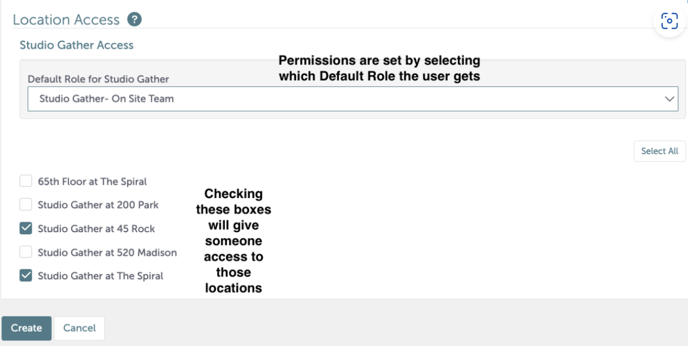
You can also limit a user roles ability to view and use documents. Scroll down to “Documents”. Here, you can select a particular location.
Step 5:
Under “Templates”, check off which documents you would like the user role to have access to. Refer to the gif above.
Step 6:
Once you are done setting up your user role, click “Create”.
Step 7:
Was this article outdated or incorrect? Suggest a revision! Still need help? Submit a ticket!