How to Add a New User to an Existing Company:
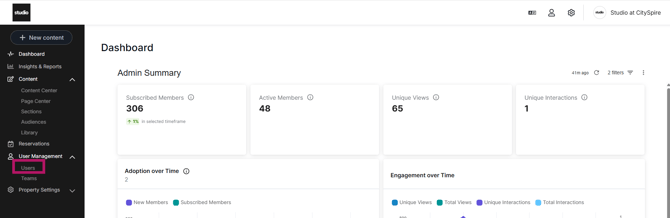
Step 1 - Navigate to the ADMIN side of app.yourstudio.com for your desired location. Click "User Management" -> "Users"
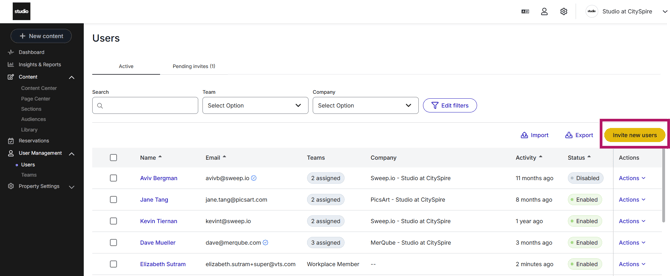
Click "Invite New Users" to add a brand new Member to an Existing Company
Enter the Members information (Full Name, Email), making sure that the email is an exact match to what you have entered in Yardi. All Members will be assigned "Workplace Member" Team.
Only if a member is a billing contact will you need to add the "Billing" Team. This will display the "View Invoices" button on their Studio App under "Resources" 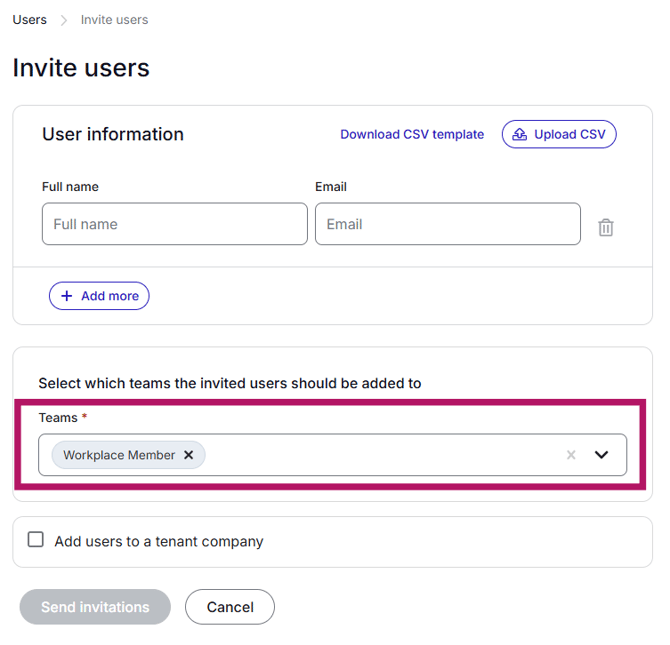
Check the box to "Add users to a tenant company" and search for the company name to add them to their company's member list.
Click "Send Invitations" to send the member their invite to join the portal.
How to Edit a current Member in the Studio App to add permissions:
Navigate to "User Management" -> "Users"
Search for the Member - check the box next to their name and click "Team" -> "Add Teams"
Add to "Billing" to turn on the "View Invoices" button in their Studio App.

How to resend an invitation to the Studio App:
Search for the member under "Users" and search to see if they are under "Active" users or "Pending Invite"
If the user is "Active", check the box next to their name and click "Reset Password" or "Remove User"
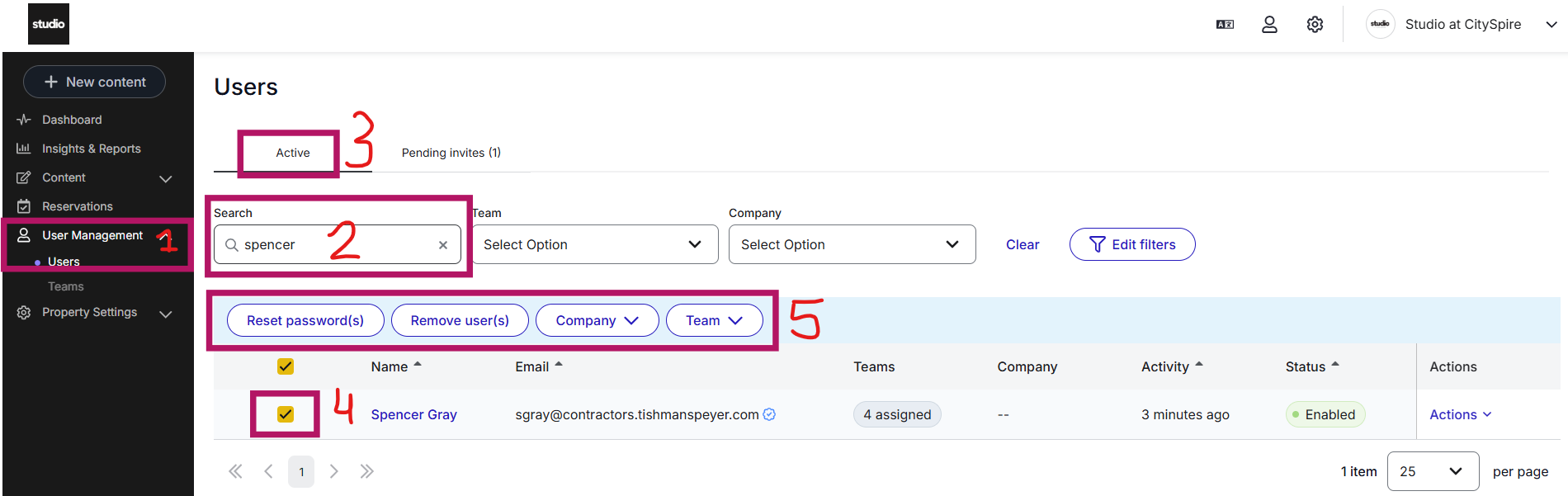
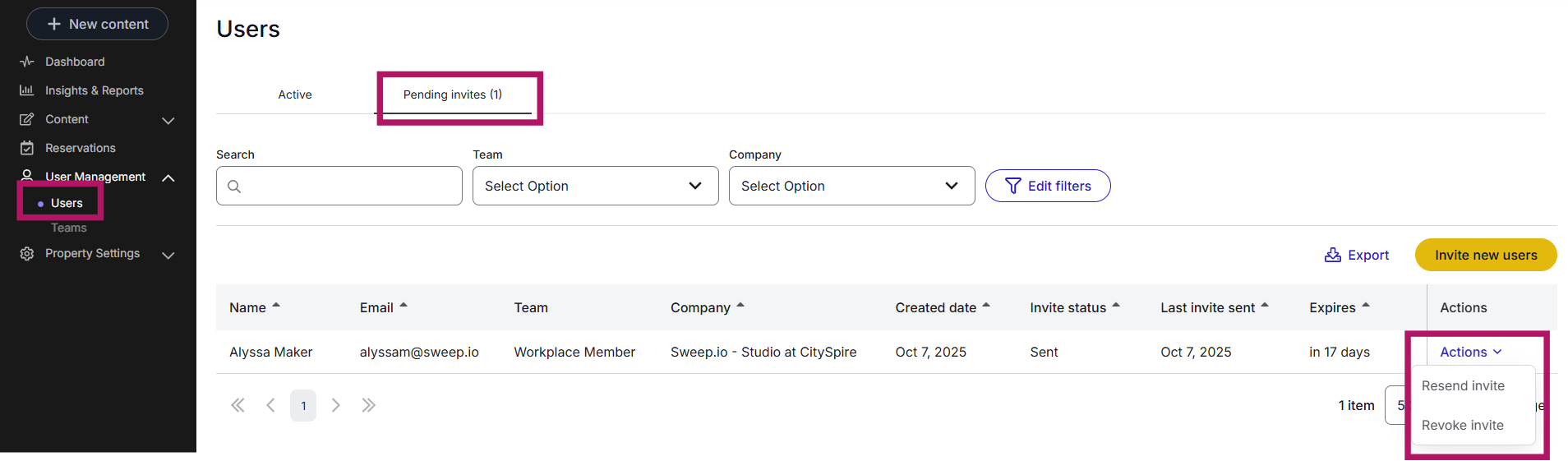
If the user is "Pending Invite" Click "Actions" next to their name and click "Resend Invite" to resend the invite. If you need to change their invitation- click "Revoke Invite", make the necessary changes, and resend the invite