
Ensure that you have already added the contact into the member company Contacts page. Click HERE for a tutorial.
By default, the primary contact when a company is created will be the contact associate to the original deal in Hubspot. We know sometime that this person is not always the primary contact onsite and you may need to change this.
Step 1 -
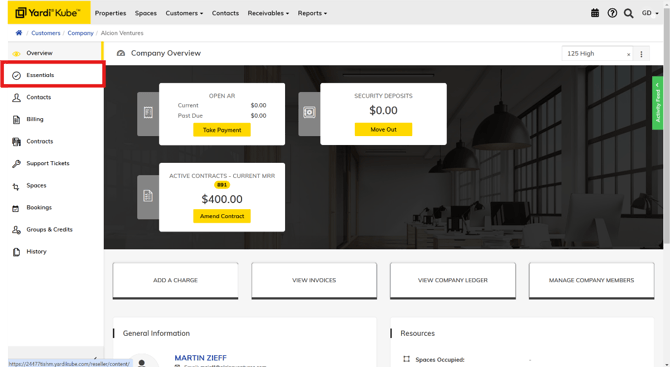
Navigate to the Company record, open the company "Detailed View", select "Essentials" on the left-hand menu.
Step 2 -
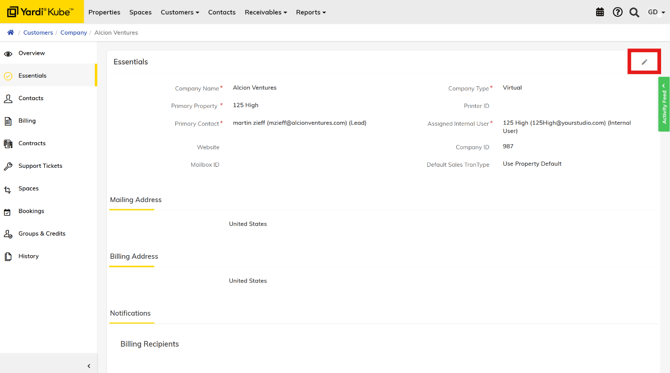
Select the pencil icon in the top right corner to edit the essential information.
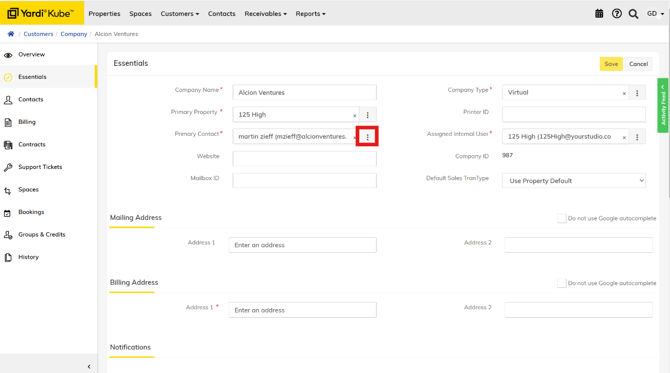
Click the three dots to the right of the primary contact's name.
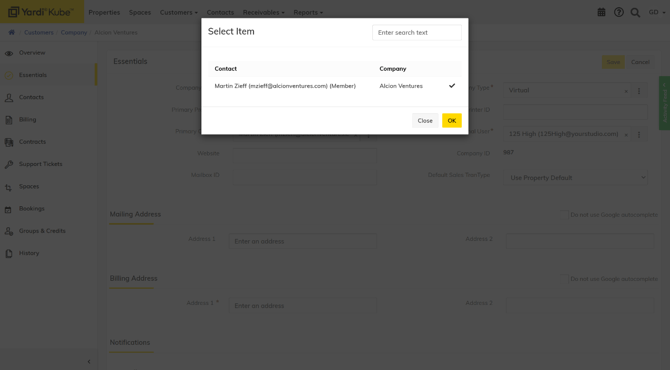
Select the contact that you would like to assign as the primary contact and click "OK". Make sure to SAVE before exiting the Company Record or exiting Kube.
Click "Save" before exiting the "Essentials" tab.
Please note that the new primary contact's name will be the one that also shows up on all future contracts send via ySign. If you are sending a contract for signature to someone else, you will need to change the primary contact of the company to the signatory. You can change it back to the regular primary contact after signature is received back from the member.