
Step 1:
On the left-hand navigation bar, scroll down to “Settings”.
Step 2:
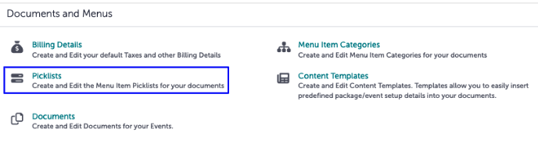
In the Settings window, scroll down to “Documents and Menus”. Click “Picklists”.
Step 3:
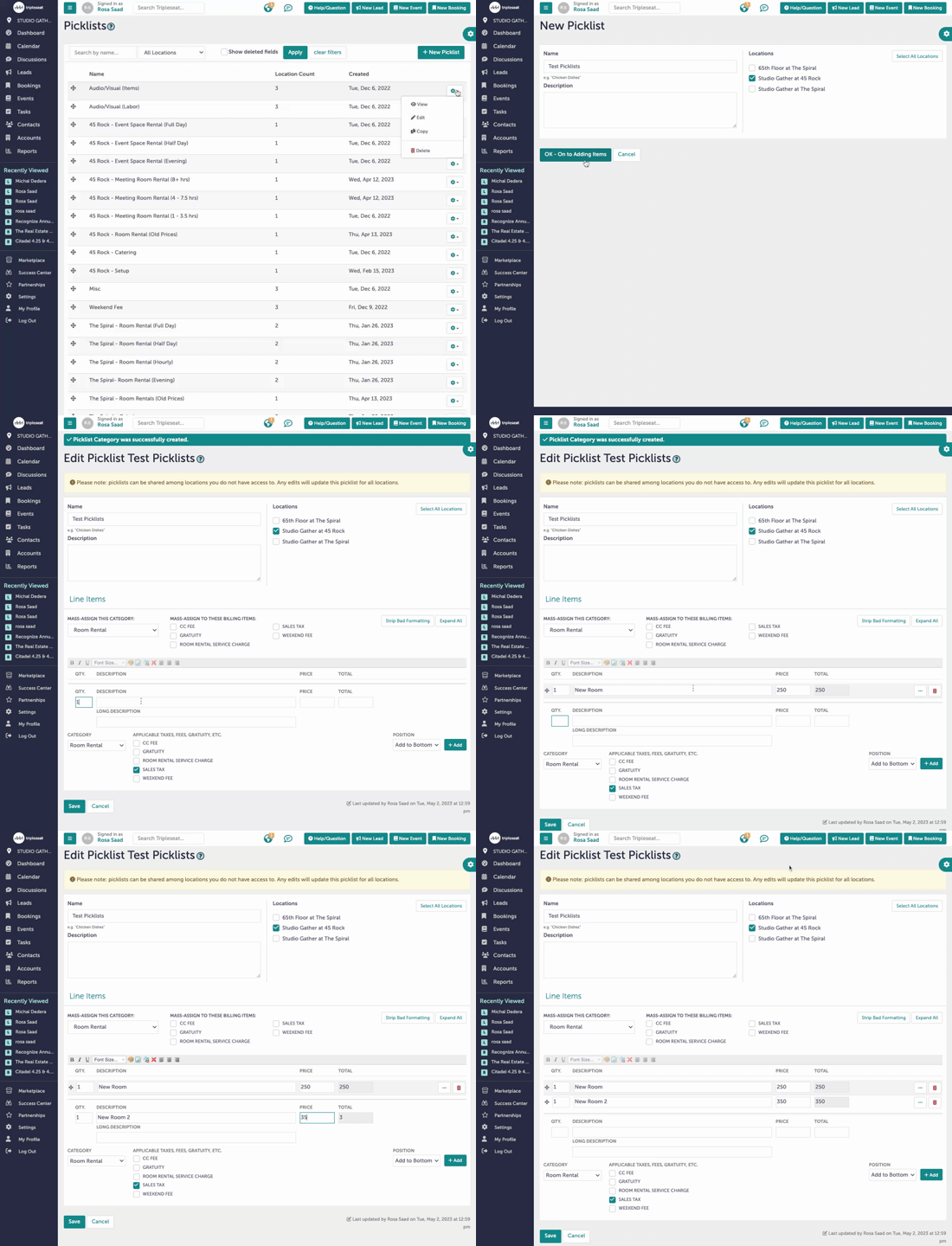
You are now at the Picklists screen. “+New Picklist” will allow you to add a brand new picklist category. Click that button.

Step 4:
You will now see a window that says “Edit Picklist [Name of Picklist]”.
Step 5:
Under “Line Items”, you can choose to mass-assign features to this picklist. You may choose to do so, or you can leave this blank and edit every line individually.
Step 6:
You will add picklist items. Enter a quantity of 1 under “Qty”. Under “Description”, write what the item is. Under “Price”, include the price of the picklist item. If it is an hourly rate, include /hr under “Description”. Refer to the gif above.
Step 7:
To add additional details to a picklist item, click the three dots “...” to the right of the item to expand. From here, you can add additional details under “Long Description”. Refer to the gif above.
Step 8:
You must click “+Add” to save the picklist item.
Step 9:
When you are done, hit “Save”.
Step 10:
Was this article outdated or incorrect? Suggest a revision! Still need help? Submit a ticket!