
Step 1:
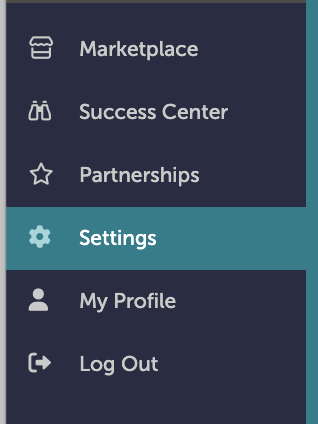
On the left-hand navigation bar, scroll down to “Settings”.
Step 2:
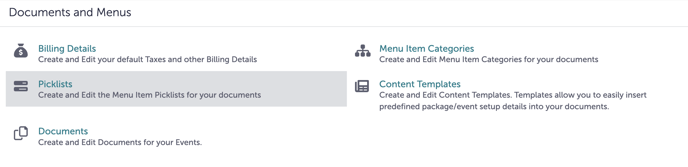
In the Settings window, scroll down to “Documents and Menus”. Click “Picklists”.
Step 3:
You are now at the Picklists screen. “+New Picklist” will allow you to add a brand new picklist category. Click that button.

Step 4:
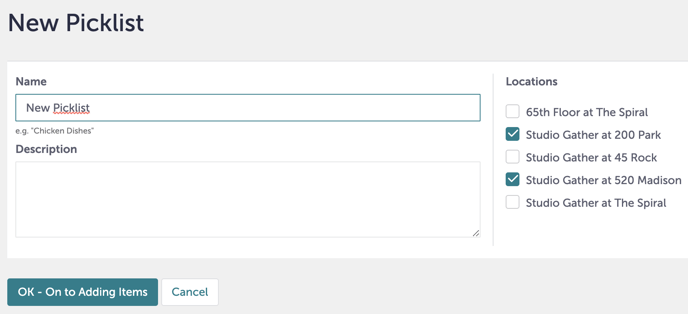
You will now see a window that says “New Picklist”.
Step 5:
Under “Line Items”, you can choose to mass-assign features to this picklist. You may choose to do so, or you can leave this blank and edit every line individually.

Step 6:
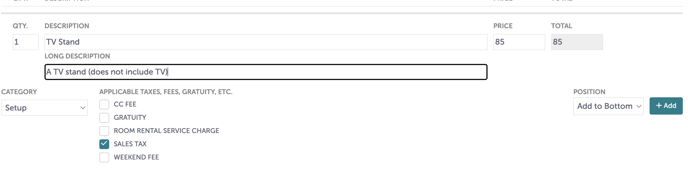
You will add picklist items. Enter a quantity of 1 under “Qty”. Under “Description”, write what the item is. Under “Price”, include the price of the picklist item. If it is an hourly rate, include /hr under “Description”.
Step 7:
To add additional details to a picklist item, click the three dots “...” to the right of the item to expand. From here, you can add additional details under “Long Description”.

Step 8:
You must click “+Add” to save the picklist item.
Step 9:
When you are done, hit “Save”.
Step 10:
Was this article outdated or incorrect? Suggest a revision! Still need help? Submit a ticket!