
Step 1:
On the left-hand navigation bar, scroll down to “Settings”.

Step 2:
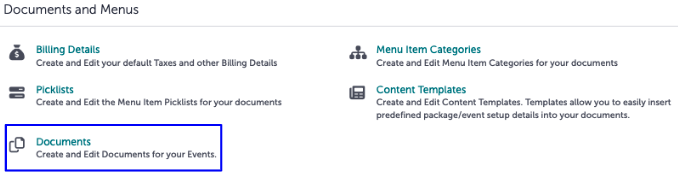
In the Settings window, scroll down to “Documents and Menus”. Click “Documents”.
Step 3:
Studio Gather uses documents on the booking level. Under "Bookings”, select “Edit Template Content” next to “Booking Contract and Event Order”.

Step 4:
You will be taken to a “Booking Contract & Event Order Template” window. Here, you add the fields you want to see in your new document. Be sure to clearly label each element to find it more easily later.
.gif?width=640&height=390&name=Settings%20-%20Studio%20Gather%20-%20Tishman%20Speyer%20-%20Tripleseat%20(2).gif)
Step 5:
Your proposal document should have:
1) An image specific to the Studio Gather location
2) An introduction, which will include details about the specific location
3) A billing widget (this should not be a custom element and you will not be able to add a duplicate billing widget to the template)
4) Location specific catering information
Step 6:
When you are done adding your elements, in this same window, click “+ Add Layout”
Step 7:
You will now add a new Layout. You must name this layout, and select which locations it should apply to. For the Proposal, the naming convention is: Proposal (location). For example, Proposal (45 Rock) or Proposal (Spiral)
Step 8:
Click “OK - On to editing fields”.
Step 9:
You should have a blank template in front of you that you just created. Drag the properties you created under “Summary Fields” here.
Step 10:
When you are done, be sure to click “Save Layout”.
Step 11:
Was this article outdated or incorrect? Suggest a revision! Still need help? Submit a ticket!