
Step 1:
Under any booking in Tripleseat, navigate down to the "Master Docs" tab. Select "Add a document to this booking". When the dropdown menu appears, select the top option, "Multi Day booking Contract & Event Order".

Step 2:
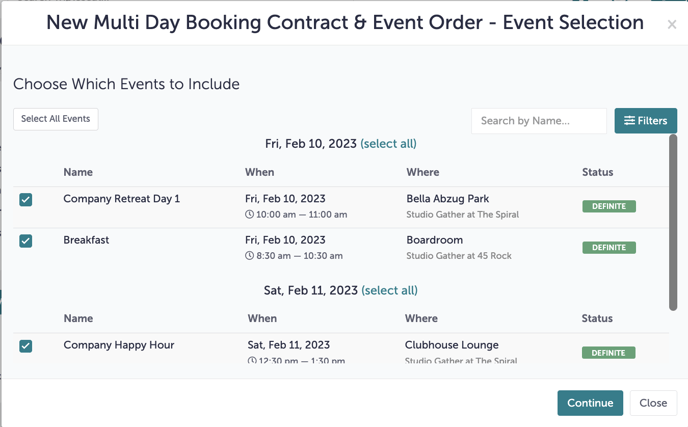
A window will appear asking you which events you'd like to include. Choose "Select All Events", then hit "Continue".
Step 3:
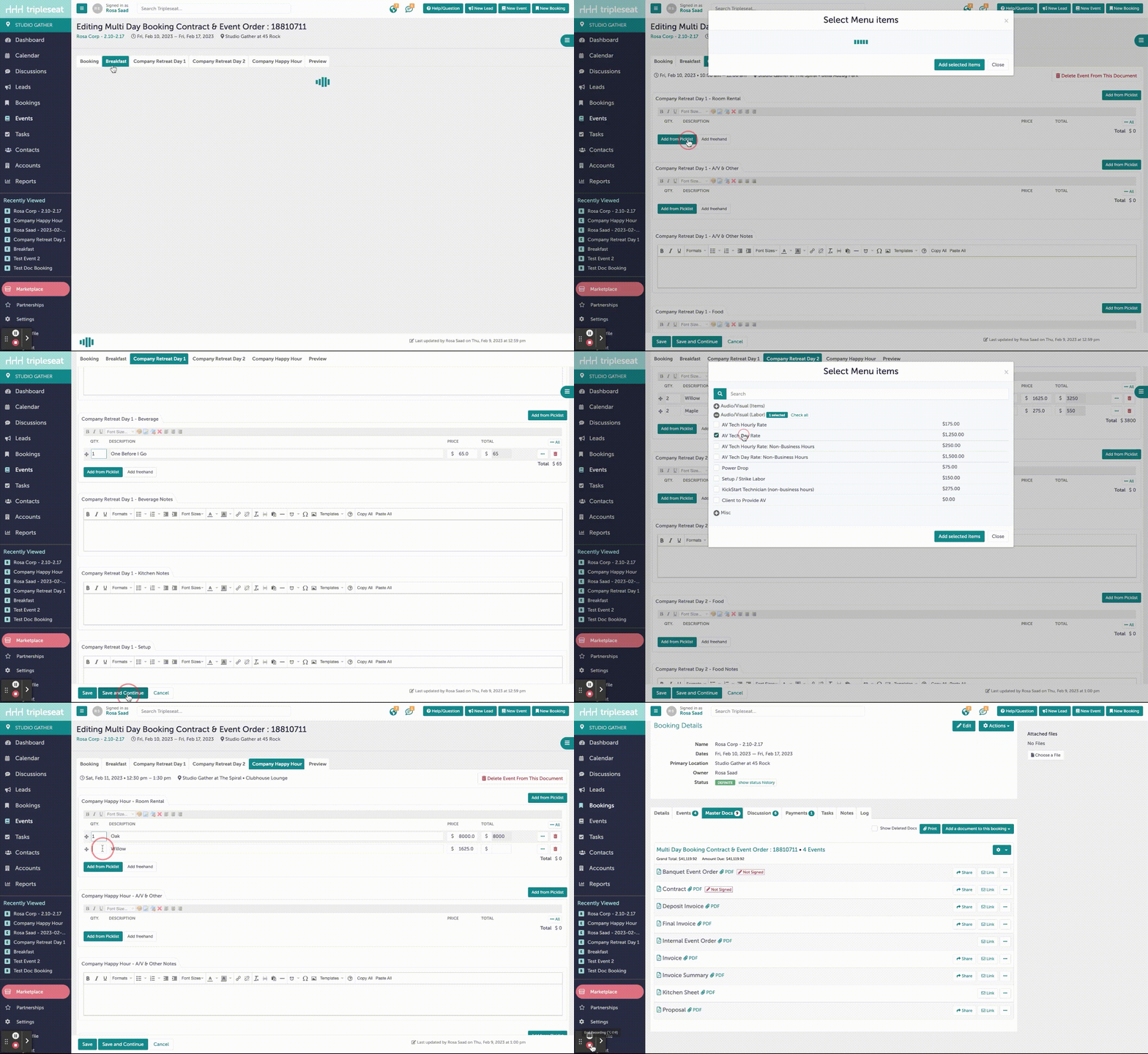
From this new widget, you will individually add event details using the "Add From Picklist" option under every event tab. Be sure to hit "Save and Continue" before moving on to the next tab.
Step 4:
The contract requires that you navigate to the “Booking” tab during document creation and update [INSERT EXISTING TENANT INSURANCE CLAUSE HERE OR DELETE]. This area has been highlighted for you. You must select this line, and either:
- delete it if the guest is not a tenant, OR
- add the tenant insurance clause if they are a tenant. You can add the template by highlighting the sentence, clicking “Templates”, and selecting “Existing Tenant Insurance Clause --> Existing Tenant”.
Hit "Save and Continue".
-1.gif?width=640&height=346&name=Studio%20Gather%20-%20Tishman%20Speyer%20-%20Tripleseat%20(2)-1.gif)
Step 5:
When all your event details have been uploaded to each individual event, you can use the "Preview" tab at the end to ensure your details are accurate. Once you've confirmed that, you will hit "Save". The master documents will not generate if you do not hit this "Save" button at the end.
You've now created a series of master documents within Tripleseat.
Step 5:
Was this article outdated or incorrect? Suggest a revision! Still need help? Submit a ticket!