
Sometimes you may need to book a space for an internal team meeting or temporarily hold a room for a member until they confirm their plans. The guide below provides step-by-step instructions on how to complete this process.
Option 1 - From the Company Page
Step 1: Once in Yardi, click on the magnifying glass on the upper right of the page. In the search field, type in "Studio by Tishman Speyer". Go to the "Company" tab and click on the company name.

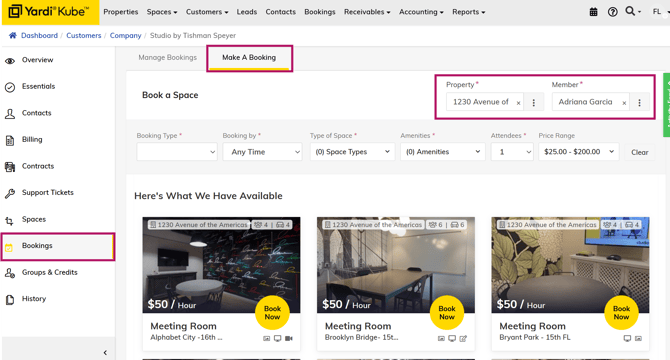
Step 2: Create a booking by going to the "Bookings" tab on the left side menu. Make sure your information is selected correctly under "Property" and "Member". Click on "Book Now" for the desired room then follow the booking process to confirm. Check out the article here: <Link>
Option 2 - From the Booking Calendar
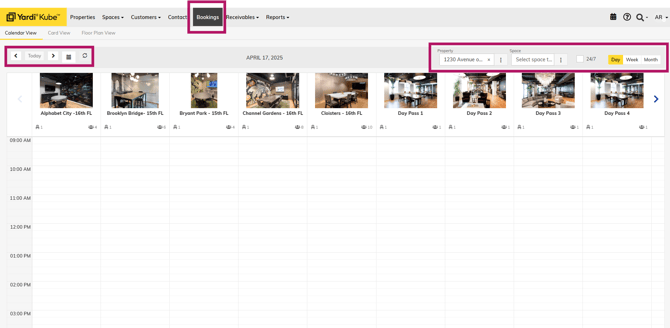
Step 1: Select Booking from the top navigation and select the correct date and property. Go to the desired space and select a time slot.
Step 2: From the booking pop-up, enter in all the correct details. For company, enter Studio by Tishman Speyer and enter yourself as Member. Confirm the rest of the details and then continue with the booking process. Make sure Payment Method is "Bill Later" in the next screen. Click "Book Now" to finalize.
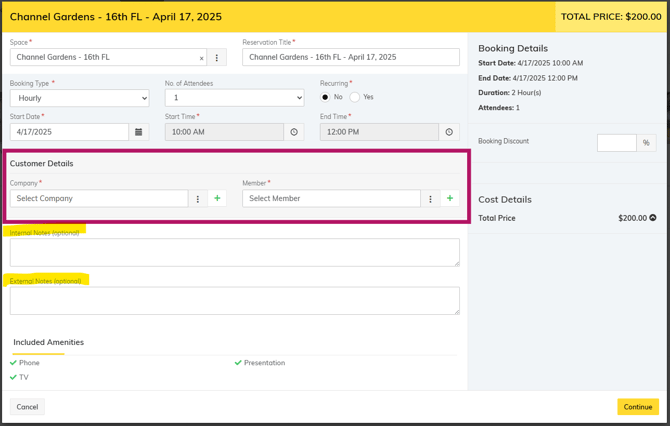
PLEASE NOTE: Holding a space temporarily will not be using credits. You will see a dollar amount when finalizing the booking.
View From Booking via Company Page:

View From Booking via Calendar: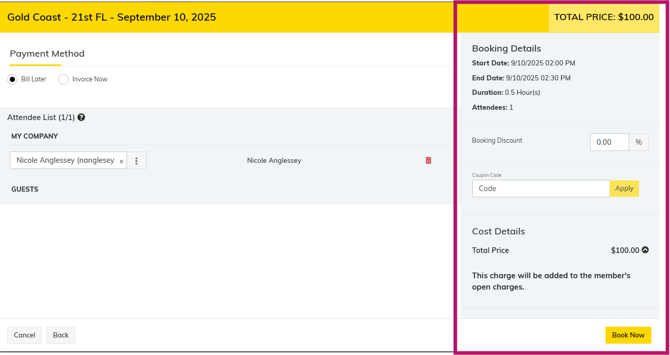
How to cancel?
Select the booking you want to cancel. A pop-up screen will ask again to confirm the cancellation. Click "YES"
