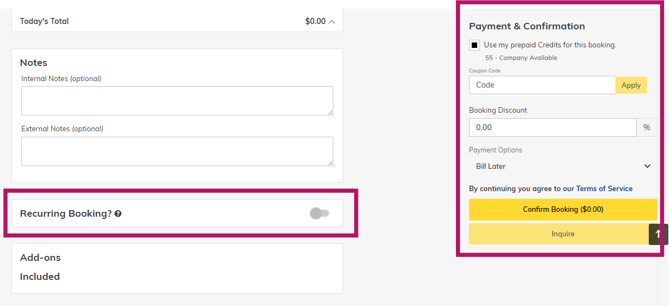
Option 1 - Wholistic Calendar View
Step 1. Click Bookings in Yardi
Select the Bookings Tab on your top menu ribbon in Yardi Kube.
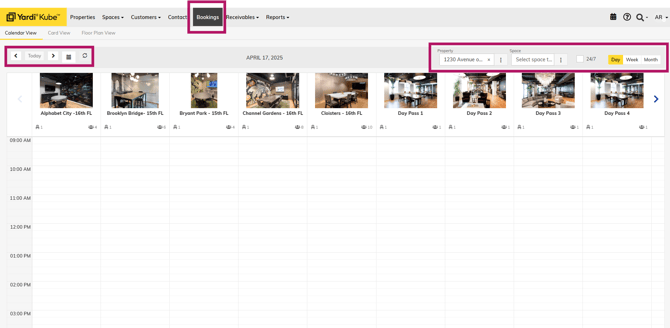
You can change the date, location, and timeline view of the bookings tab using the filters and buttons above the list of meeting rooms.
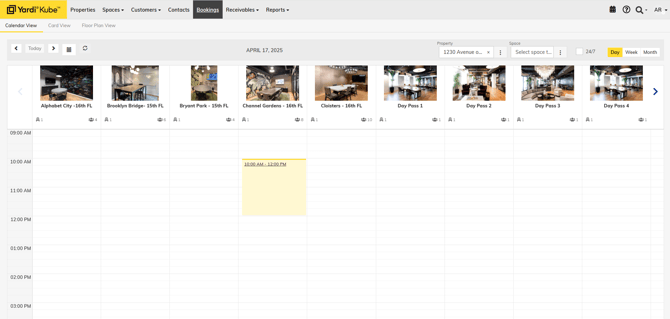
Step 2. Select the Meeting Time & Location
Click and drag the time frame of the meeting for the desired room - just like in Operate - this will bring you to the details page where you can select the company & contact.
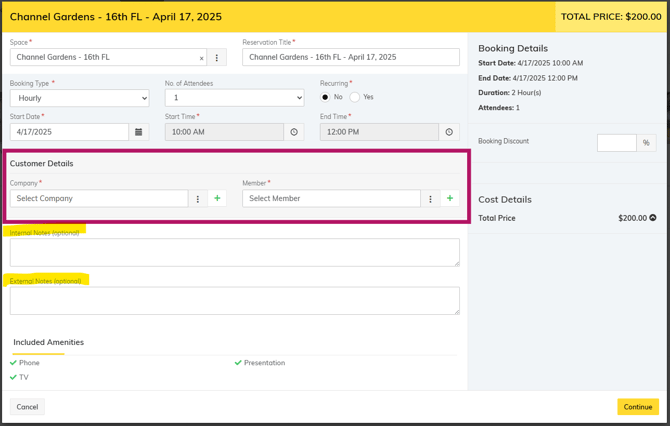
Step 3. Add the company details
Select the Company and Member to attach to the booking. Both fields are required. If you do not know the member's name and you are creating a booking on their behalf, attach the primary member for the company.
Internal Notes will show on the Hubspot email notification sent if a Member books outside of their home Studio location.
External Notes may appear to the member on their reservation.
Confirm the rest of the auto-populated details - Space, Date, Time, Duration.
Click Continue.
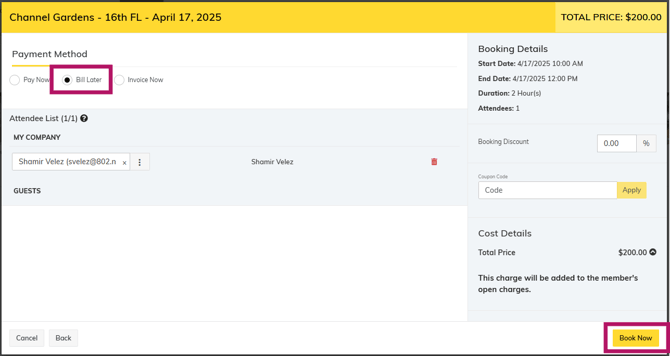
All members should be preset for Bill Later to have their booking charges added to the open charges and will appear on the following month's invoice.
Click Book Now to create the booking.
Option 2 - Company View
Step 1. Navigate to the Company's page and Click the Booking tab on the left side menu.
On the company overview, you can see how many credits a company has included in their agreement. XX/YY where XX is the number of credits they have used and YY is the number of credits included in their contract.

Step 3. Click "Make a Booking"
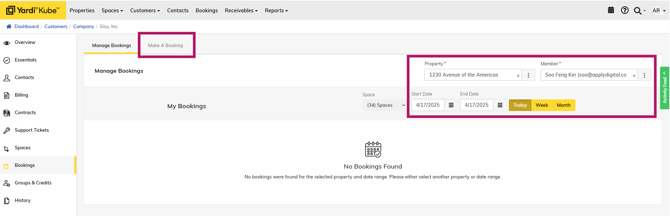
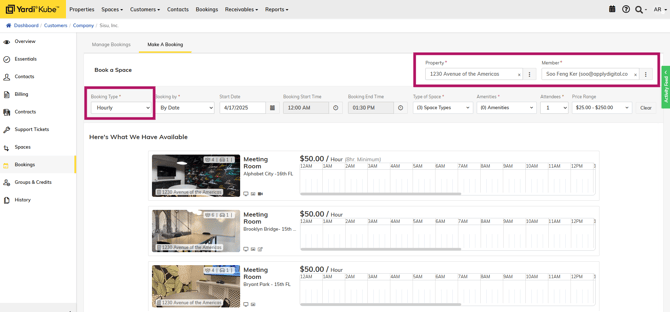
You can use the filters at the top of the page to change your property, filter through various attributes of the workspace -- such as type of space, amenities, etc.
Step 4. Find the desired room and timeframe which will bring you to the confirmation page.
Ensure that under Payment & Confirmation that the box to use Prepaid Credits is checked.
If the company still has credits to use on their account, the total will reflect $0.
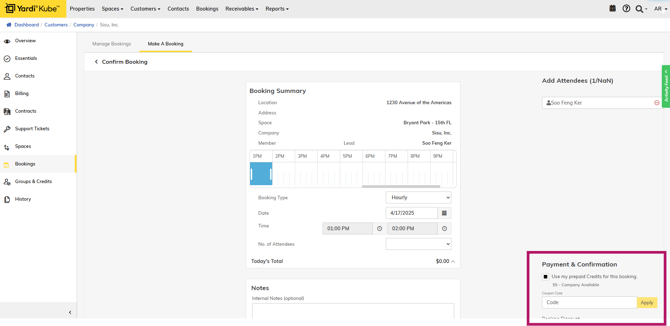
Click Confirm Booking to create the booking on the calendar.
Note: If there are not enough credits to cover the cost of the booking, you will see the amount that will be added to Open Charges and invoiced on the next month's Bill Run.