
Step 1:
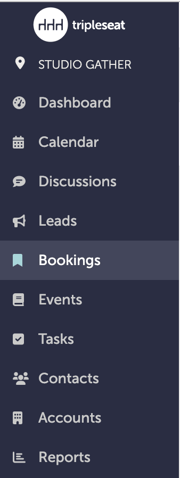
Navigate to "Bookings" on the left-hand navigation bar to select the booking you want to update.
Step 2:
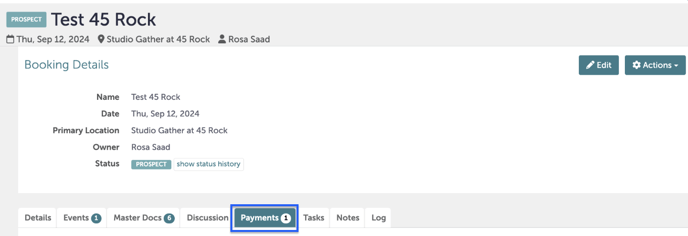
Navigate to the "Payments" tab of the booking.
Step 3:
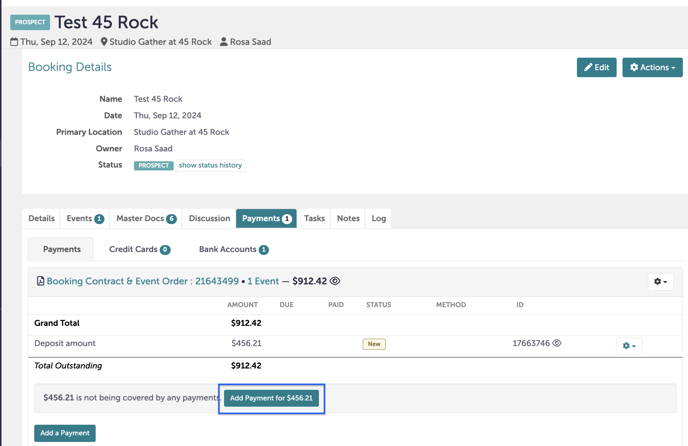
The payment tab should already have the deposit amount reflected, which will cover 50% of the total amount. You will need to manually add a payment to cover the remaining balance.
Click "Add Payment for X". If you don't see that button, you can also click "Add a Payment" and manually update the amount.
Step 4:
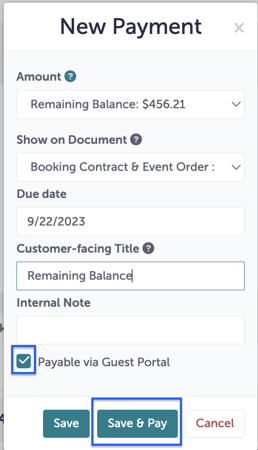
A pop-up window will appear. "Remaining Balance" should be an option under "Amount" Please select that, add a due date, and add a customer-facing title.
Step 5:
Be sure "Payable via Guest Portal" is checked off. Then, click "Save & Pay".
Step 6:
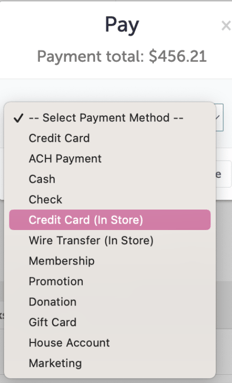
Another pop-up window will appear. Here, you will select the Payment Method that will be used to cover this remaining balance.
Step 7:
A third-pop will appear asking you to provide more information around the payment. Under "Payment Reference", please add the invoice # or check #.

Step 8:
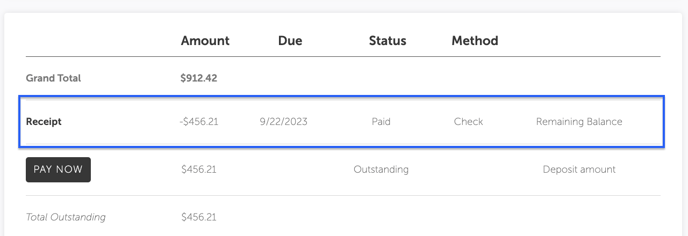
Click "Submit". The payment will now appear on the client's guest portal.
Step 9:
Was this article outdated or incorrect? Suggest a revision! Still need help? Submit a ticket!