
Step 1:
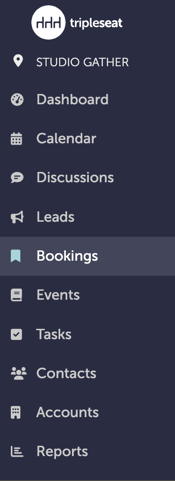
Navigate to "Bookings" on the left-hand navigation bar.
Step 2:
Filter for whichever events you want to show up in the mass export. You can filter in two ways:
a) By using the date ranges at the top of the top of the bookings window
b) By using the "Filters" button on the far right-hand side

.gif?width=640&height=350&name=Bookings%20-%20Studio%20Gather%20-%20Tishman%20Speyer%20-%20Tripleseat%20(21).gif)
Step 3:
The filters will restrict which bookings you see. The bookings that appear in front of you are the bookings that will get pulled for the export.
Scroll all the way to the bottom and click "Download Master Documents".
.gif?width=640&height=350&name=Bookings%20-%20Studio%20Gather%20-%20Tishman%20Speyer%20-%20Tripleseat%20(20).gif)
Step 4:
Select which document type you would like to download. Any bookings with those documents will be part of the download. Click "Download Documents".
Step 5:
The following message will appear at the top of the page:

Step 6:
The file will be emailed to you as a ZIP file. Please check your email for the link. Allow up to 10 minutes for the email to arrive, especially with large batches.
Step 7:
Was this article outdated or incorrect? Suggest a revision! Still need help? Submit a ticket!