
Click HERE for how to make bookings in Yardi.
How to Edit Recurring Bookings
Option 1 - Wholistic Calendar View
Step 1. Select the room and time for the booking.
Set Recurring to Yes. Then define the Days to repeat and the End On date.
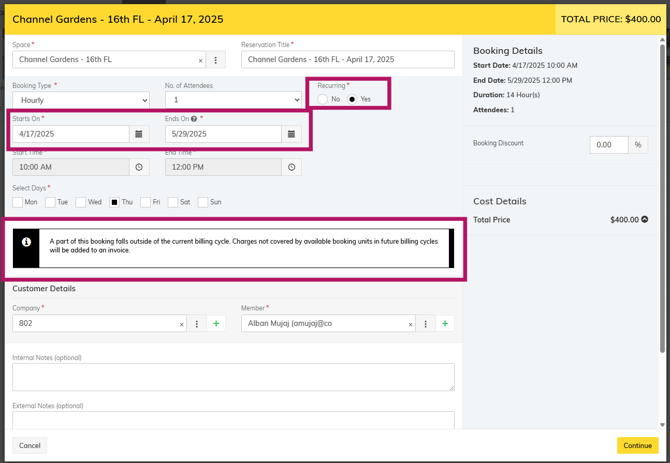
Onsite teams and members will see a notice during booking that if recurring bookings span multiple months, all bookings will be charged on the 1st of each month.
Message Shown: "A part of this booking falls outside of the current billing cycle. Charges not covered by available booking units in future billing cycles will be added to an invoice"
Option 2 - Company View
Step 1. Navigate to the Company's Manage Bookings Tab.
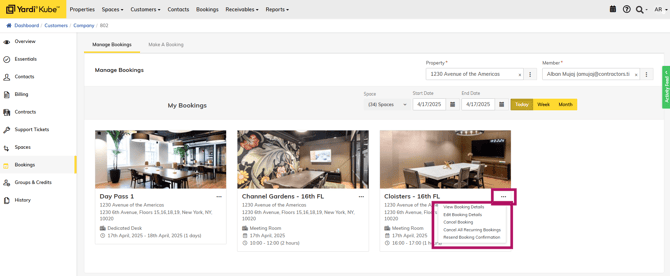
- Click the 3 dots next to the booking to modify. You can either edit the booking, cancel the single booking, or cancel all recurring bookings.
- If you select cancel, select either “Cancel with fee” or “Cancel without fee”. Follow the refund policy (below) or ask your manager for more details. Click “Yes” to confirm.
Note: Onsite team will select “Cancel with fee” when the request to cancel was received within 60 mins from booking start time.
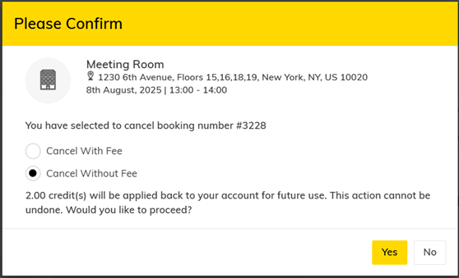
Cancellation Warning: Once you cancel a booking, it cannot be undone. Another booking will need to be created.
Refund Policy:
Meeting Rooms: Bookings cancelled up to 60 mins before the start of the reservation time will have the credits returned to the available company credit pool immediately. Bookings cancelled within 60 minutes of the reservation time has started are non-refundable.
Day Passes: Members have until 11PM the night before to cancel without penalty and the credits/dollar value are refundable. Any cancellations after 11PM will be non-refundable.
If booking is made with both credit and cash, both will refund back to their company account.