
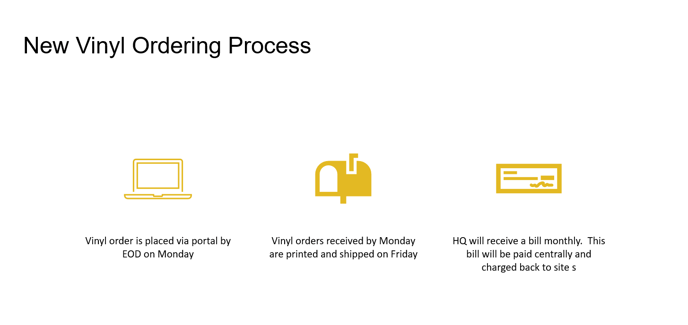
| Site | Username | Password |
| 600 5th | SATS_NY01 | Welcome22! |
| CitySpire | SATS_NY02 | Welcome22! |
| 300 Park | SATS_NY03 | Welcome22! |
| 1230 AoA | SATS_NY04 | Welcome22! |
| 11 West | SATS_NY05 | Welcome22! |
| 175 Varick | SATS_NY06 | Welcome22! |
| Spiral | SATS_NY07 | Welcome22! |
| 125 High St. | SATS_MA01 | Welcome22! |
| 900 19th St. | SATS_DC01 | Welcome22! |
| The Franklin | SATS_IL01 | Welcome22! |
| Beverly Hills | SATS_CA01 | Welcome22! |
| 595 Market | SATS_CA02 | Welcome22! |
| 333 Bush | SATS_CA03 | Welcome22! |
Step 1:
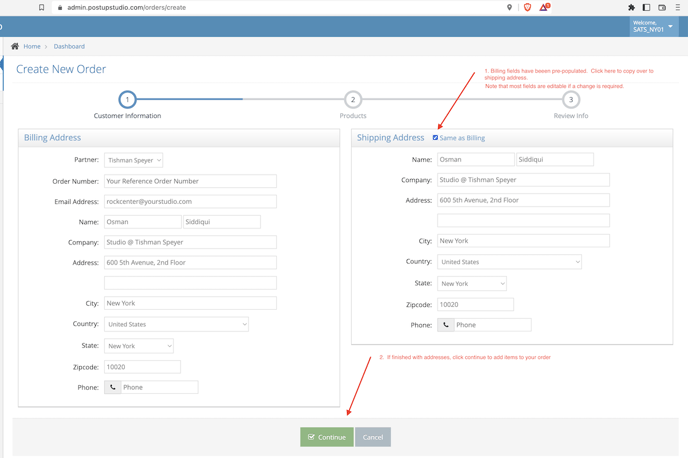
Start by logging into your user account here. Use credentials above to log into your site's account. Confirm details are correct and click CONTINUE to begin creating your order.
Step 2:
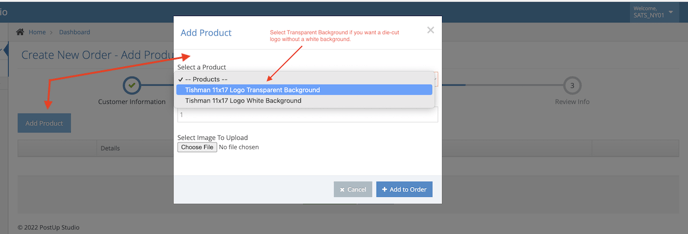
From here, you can add items (logos) to an order. Click Add a product to launch a window where users can select the type of logo and quantity, along with an upload link to send us artwork.
Note: most users want die-cut logos without a background (transparent), however, you can elect to have a logo made with a white background here if so desired. If white background is selected, you will receive a rectangle (or square is 1:1 aspect ratio) sticker.
When finished adding items, click Continue to load the Order Review page.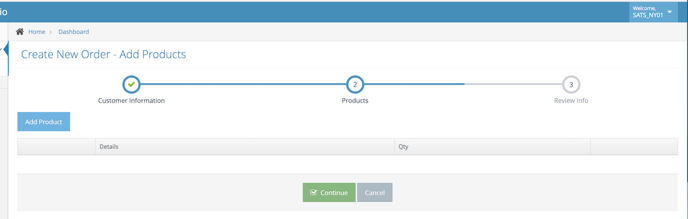
Step 3:
From the Order Review page, confirm that all details are correct and click Submit Order to complete the order. Alternatively, a suer can add additional items if they need to, or they can elect to cancel the order.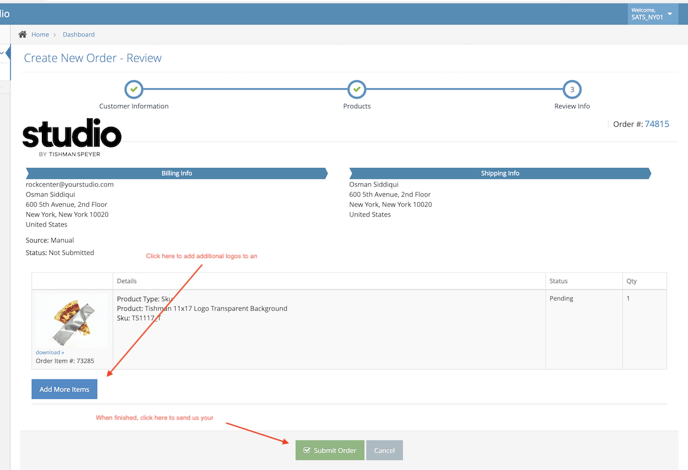
Once an order is created you can view it in your orders queue, along with prior orders, by clicking on the orders link in the upper left navigation area. You will have the ability to view an order's status from here as well, along with tracking information once they have shipped.
Was this article outdated or incorrect? Suggest a revision! Still need help? Submit a ticket!