
Step 1 - Find Company
Navigate to the company in Yardi.

Step 2 - Add Charges
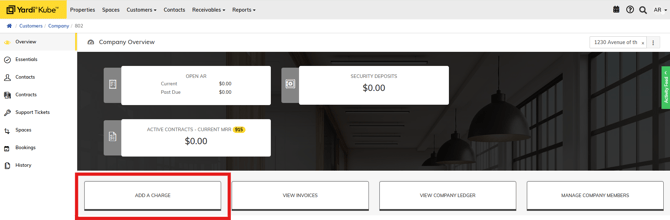
Apply any open charges to the account for wear & tear, repairs, unreturned keycards/keys - Click HERE for article on how to add charges.
Step 3 - Create Ticket to Invoice
Create a "Yardi Invoicing" ticket for Karina to create the invoice for open charges.

Step 4 - Move Out & Verify Charges
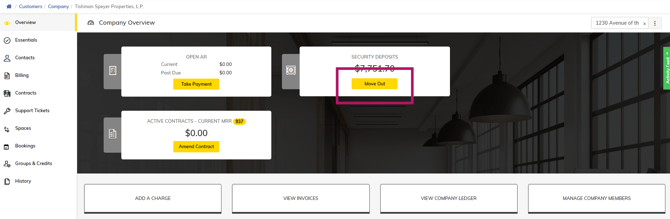
On the Yardi Company Overview - Click "Move Out"
To ensure all numbers are correct:
1. Verify the invoices created for any move out charges in the row of invoices and the amount is correct next to Outstanding Charges.
2. If all of the charges have been applied correctly, you will enter the full amount of the deposit into the Adjust field. Ensure that the Remaining Contract Value (for downgrades you will keep the amount needed on file, for total move outs this will be $0); Refund to Company (minus any outstanding charges) and Amount Owed (back to the company) are correct.
3. Change the Cash Account to be your security deposit account. - 110400 Studio - Operating Account
4. If there are invoices, check the box to include all of the invoices on your statement.
5. Click Download Statement in the top bar.

Step 5 - Download Statement (new "Exposure Report" from Operate)
From your Downloads - you will find the statement of all move out charges. Verify that all charges/credits/refunds are correct. You will upload this statement to the Hubspot Report.

Step 6 - Complete Hubspot "Security Deposit Refund" ticket.
Click HERE for article on Security Deposit Refunds.