
Step 1: Open Platform and select "Occupiers" tab.
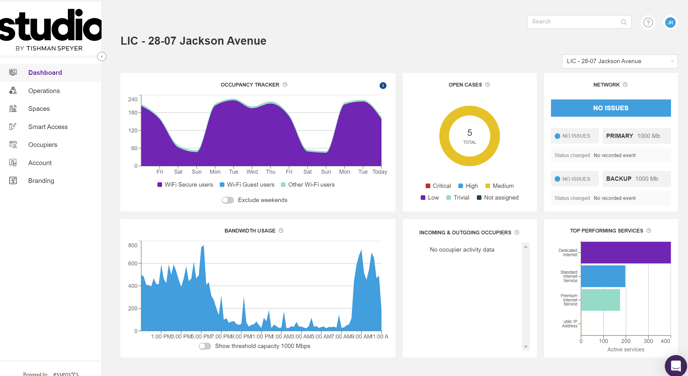
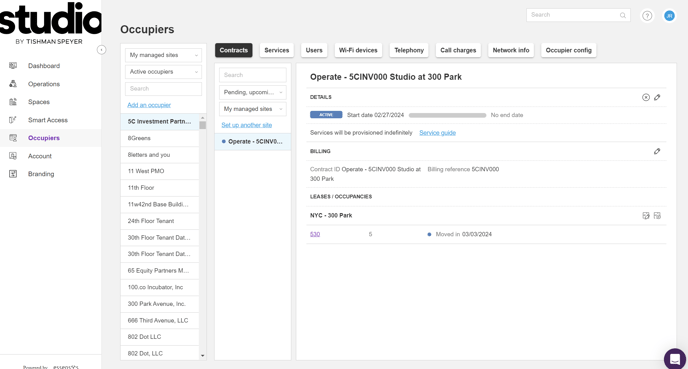
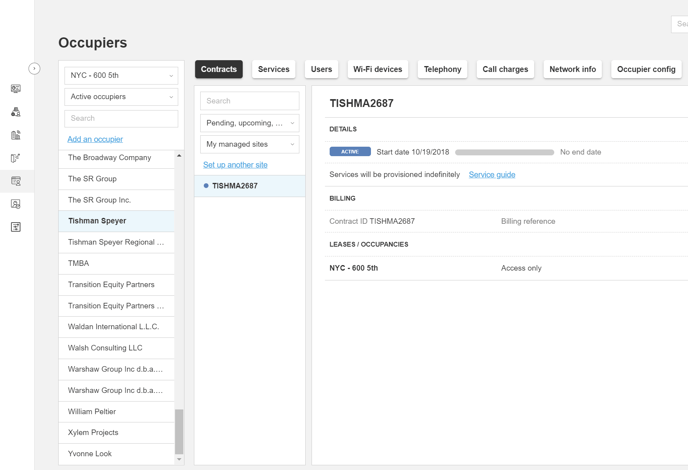
Step 2: Select your site from "My Managed Site" and select the company the Member works for so it's highlighted in light blue (if you have not added the company to Platform, select here for instructions). Select "Users" button.
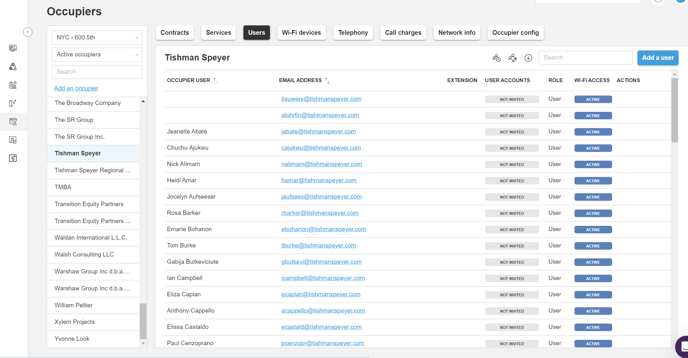
Step 3: Select "Add a User" button.
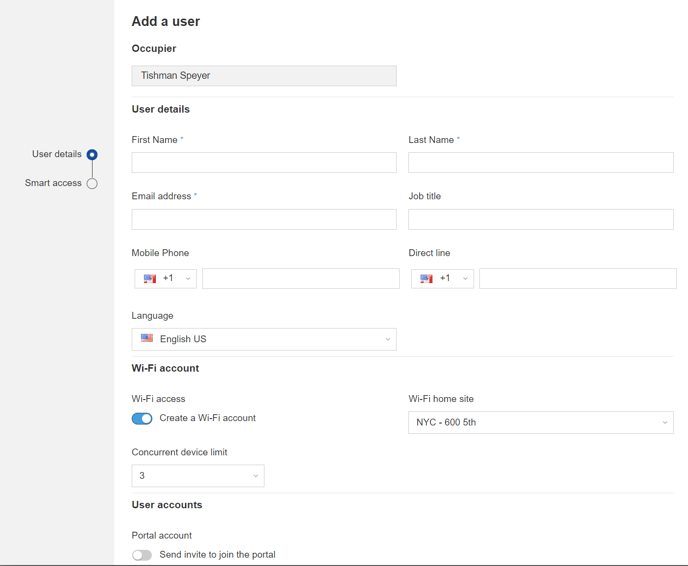
Enter Member's email address and first and last name.
Make sure "Create a Wi-Fi Account" check box is selected.
Make sure the "Send invite to join the portal" check box is not selected
Keep the "Concurrent Device Limit" set at 3 devices.
Step 4a- For buildings without Essensys keycard readers on Squad doors
Do not select anything on the following screen (shown below), proceed to "Add User".
If you are adding multiple Members to a company, select "+ Add a user" and repeat Step 3.
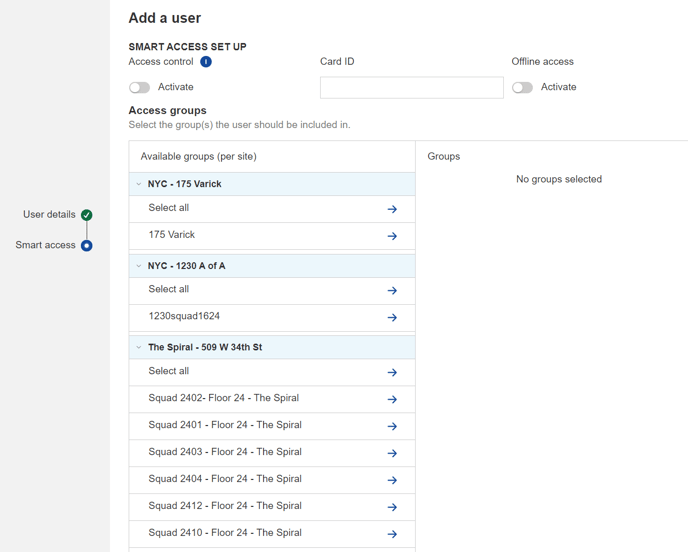
Step 4b - Only for buildings with Essensys keycard readers on Squad doors
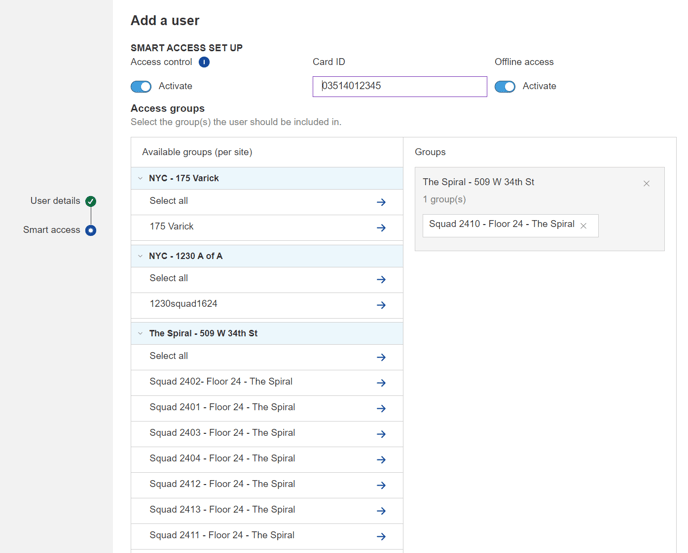
Select the squad door(s) that you want to activate. Toggle the "Activate" switch on. In the Card ID section, Enter your building code (contact 802 or create a ticket if you don't know your building code)+leading zero+badge number, then toggle on the "Offline Access".
Ex: To activate a keycard with badge number 12345 at the Spiral (building code 03514) for Squad 2410, you would enter "03514012345"
Click "Add User" and repeat for additional members.
Step 5: Member will receive and email from no_reply@essensys.tech with their personal log in details for the WiFi Secure network.
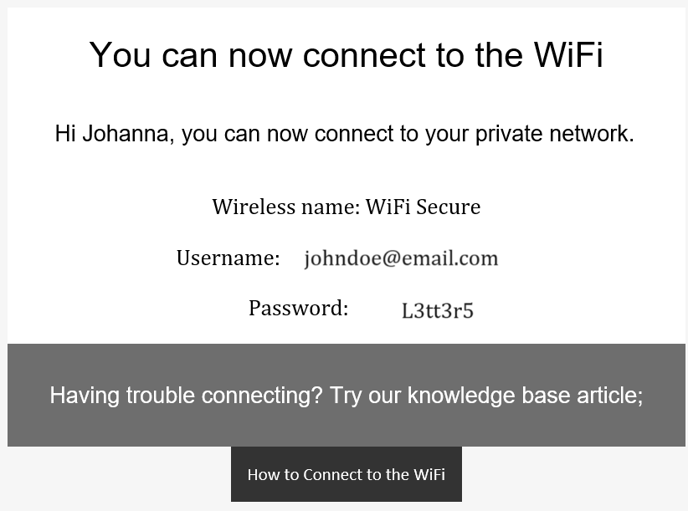
Members can then use these credentials to log into the network for up to 3 of their devices.
Step 6:
Members should type their Wifi Secure password as shown in the email. The password should not be copy/pasted. Copy/pasting the Wifi Secure password can potentially add a blank character to the password input and the system may deny access to the network due to incorrect credentials.
Step 7:
Was this article outdated or incorrect? Suggest a revision! Still need help? Submit a ticket!