
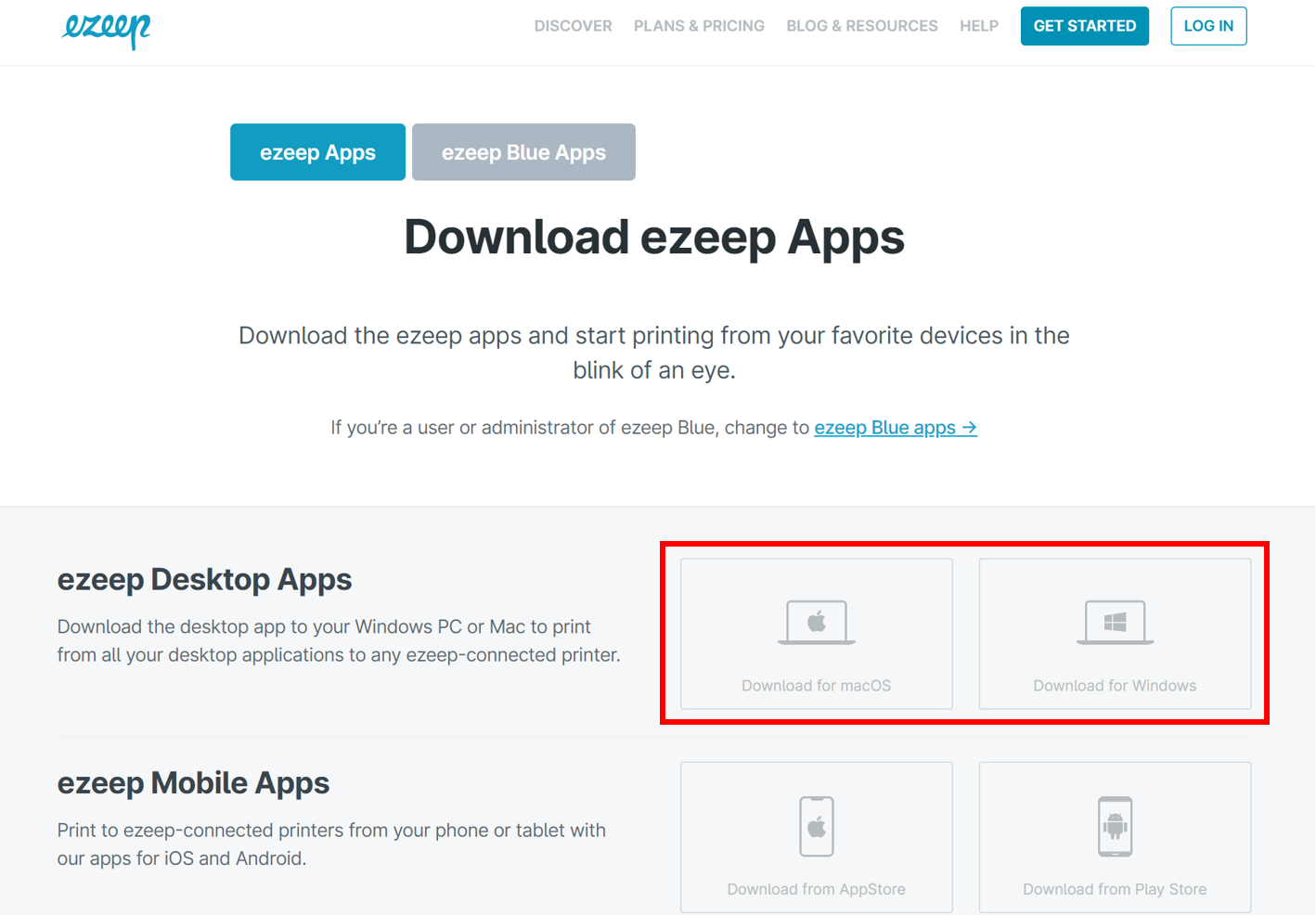
Step 1: Open up the Ezeep Downloads page. Under ezeep Desktop Apps, select the computer type the Member has.
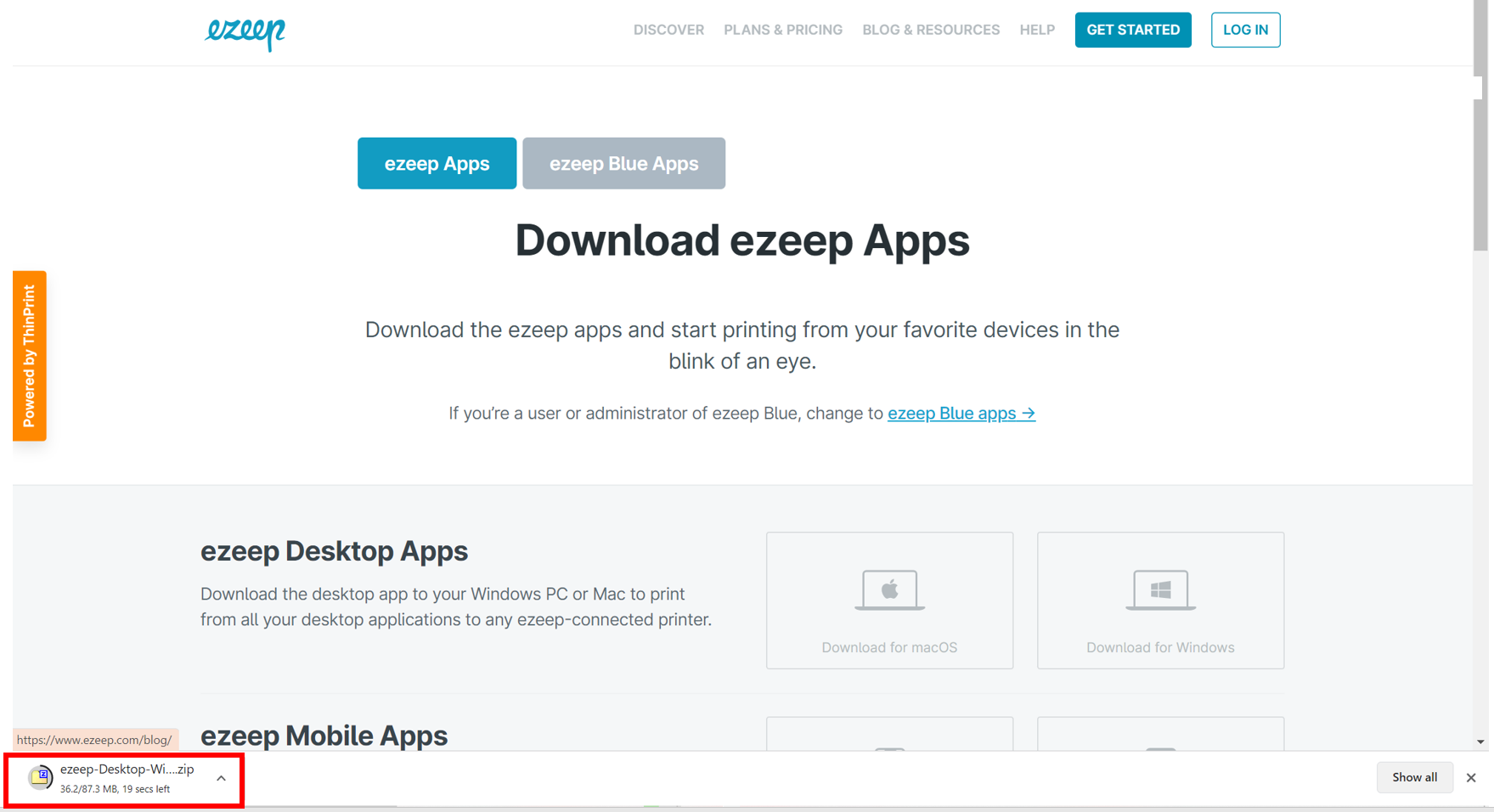
Step 2: The download will appear and you will select it to open the software. (For Macs, you usually have to drag and drop the download onto the desktop for it to be be downloaded onto the computer).
Step 3: When the popup box opens, double click on the "ezeepSetup" file and it will initiate the software download.

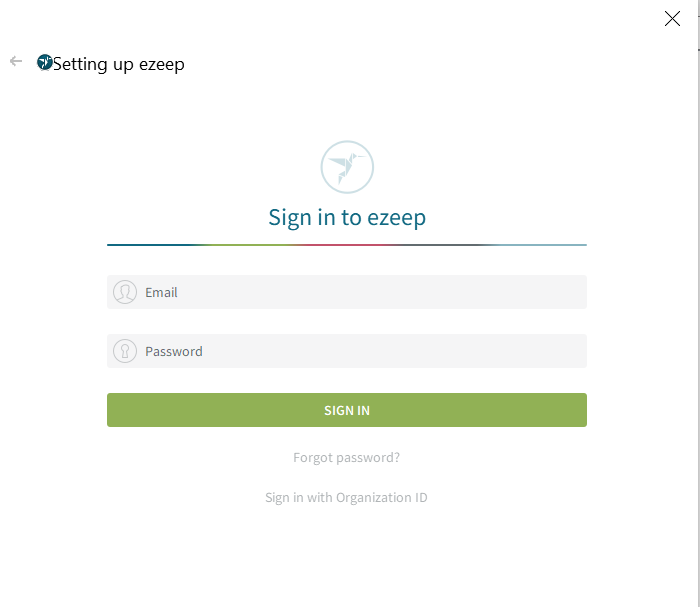
Step 4: Once the software has downloaded, the sign in screen should automatically pop up. The log in details are the email the Member provided and the password can be found on under the "Pin Number" in the contact information on Operate. To see instruction on setting a Member up with printing access, click here.
Once they are logged in, the Member will be able to print right from the document instead of using the web portal.
Was this article outdated or incorrect? Suggest a revision! Still need help? Submit a ticket!