
Step 1: Open the Studio App and click on the "Guest Registration Tile" 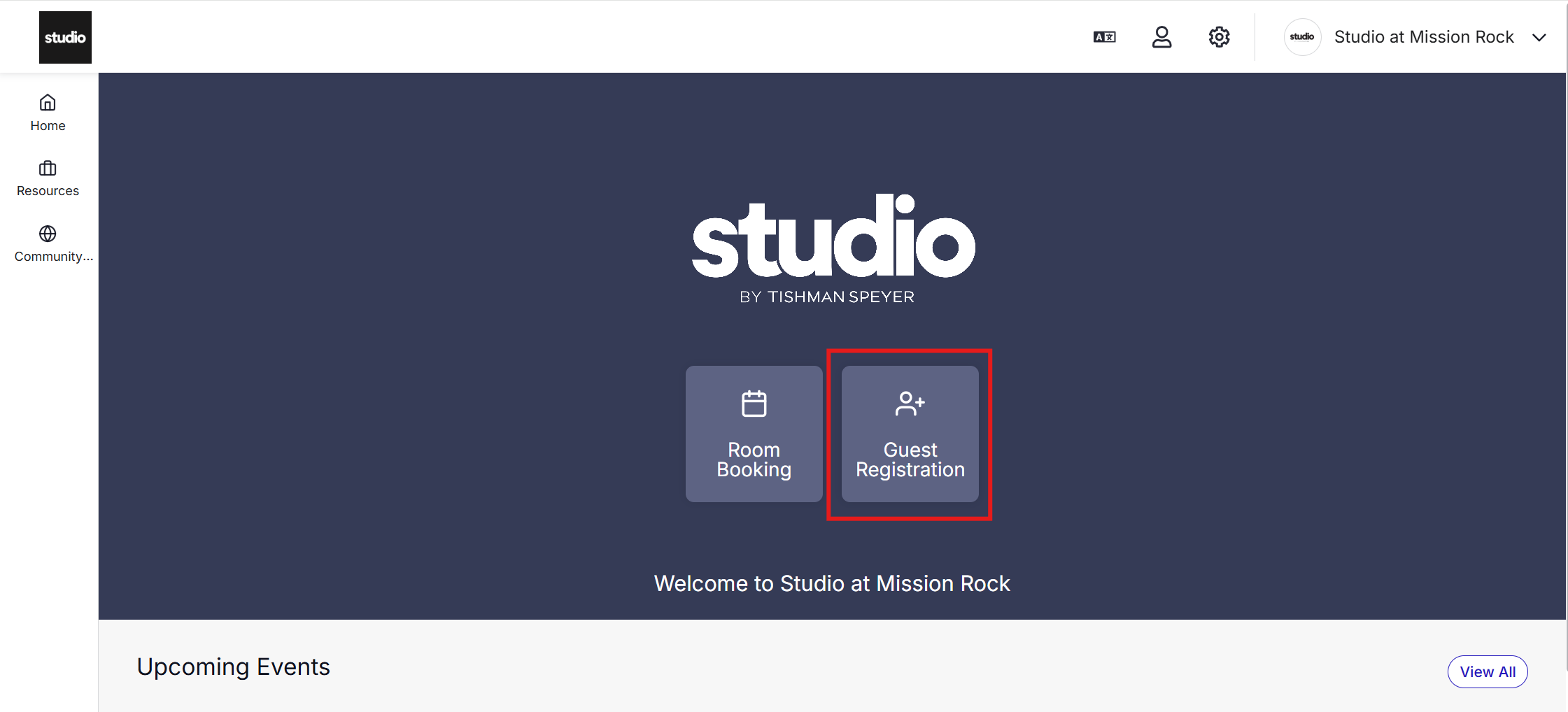
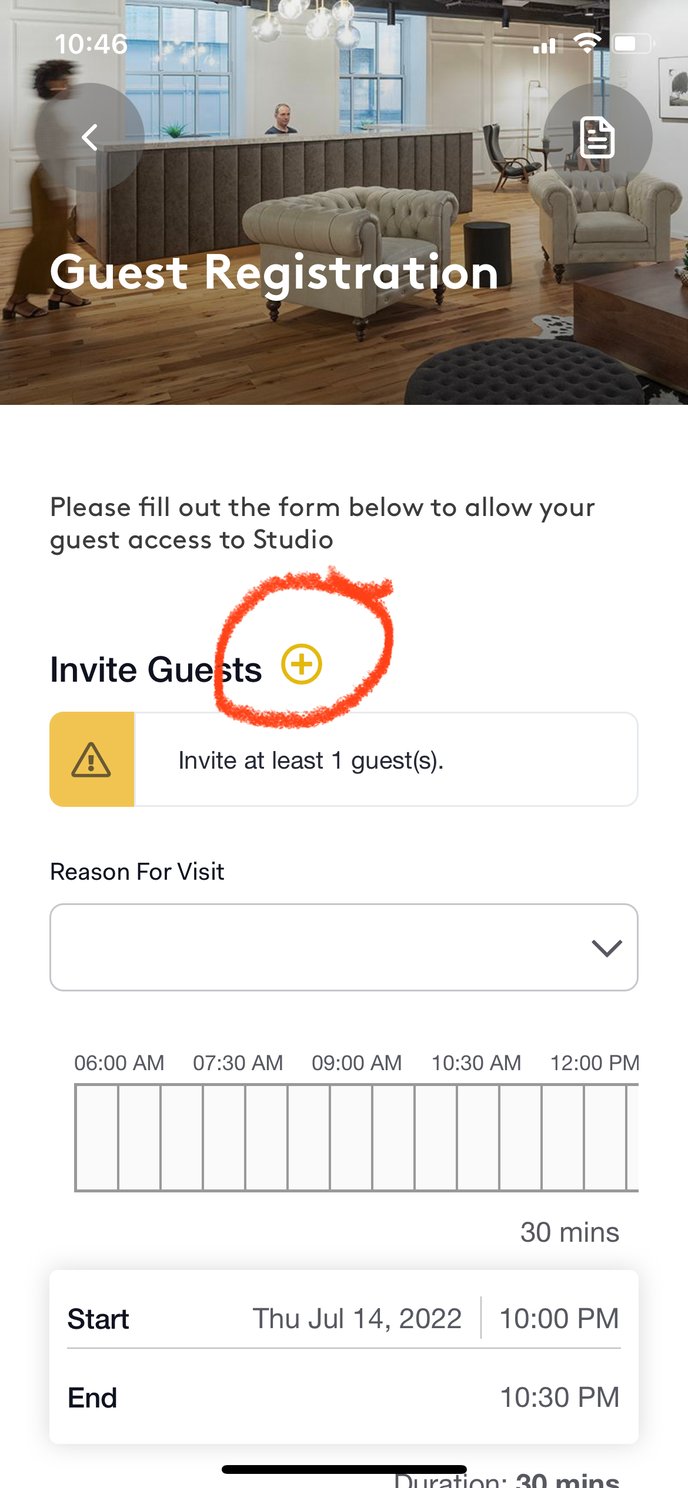
Step 2: If your building uses iVisitor guest registration system - Click on the plus sign (+) to invite a guest
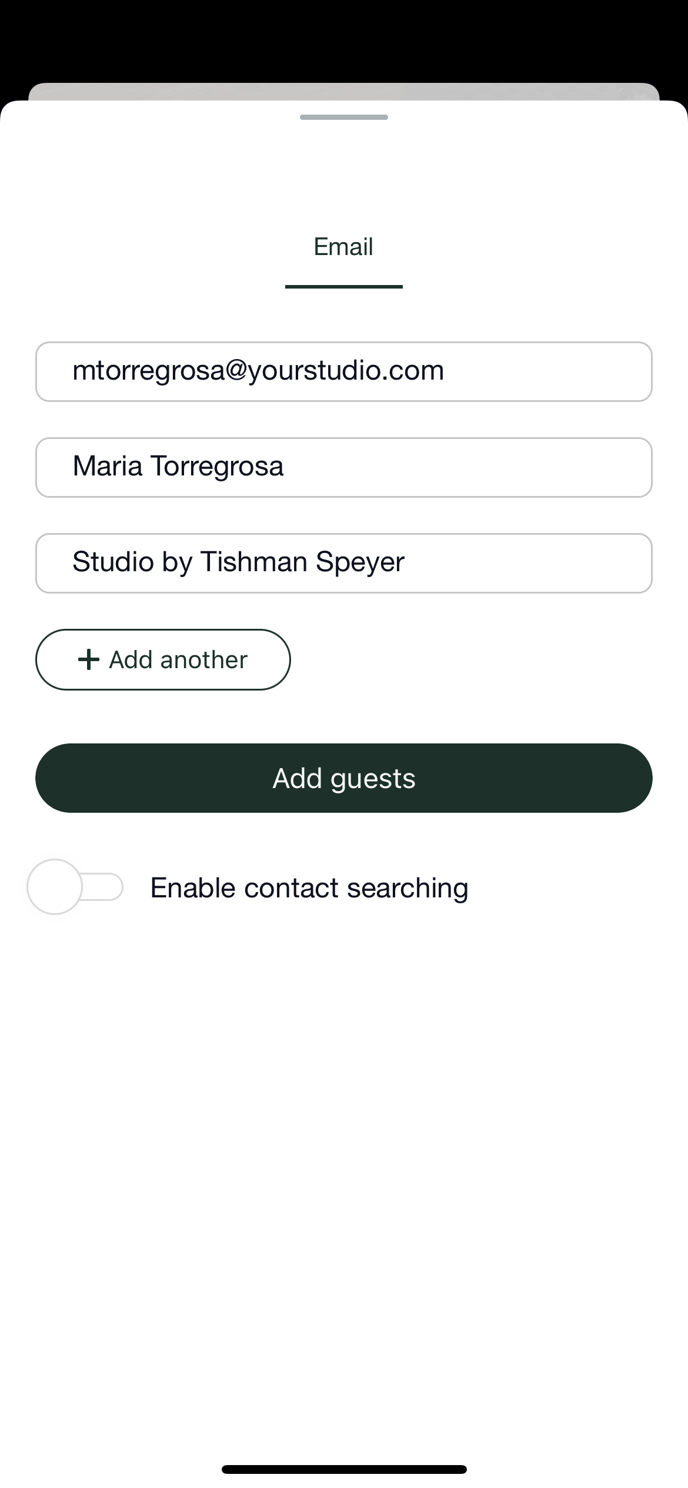
Step 4: Enter the guests email, full name, and company or put NA
Step 5: Click "Submit"
Step 6: Pull down on the gray bar at the top to return to the main guest registration tab
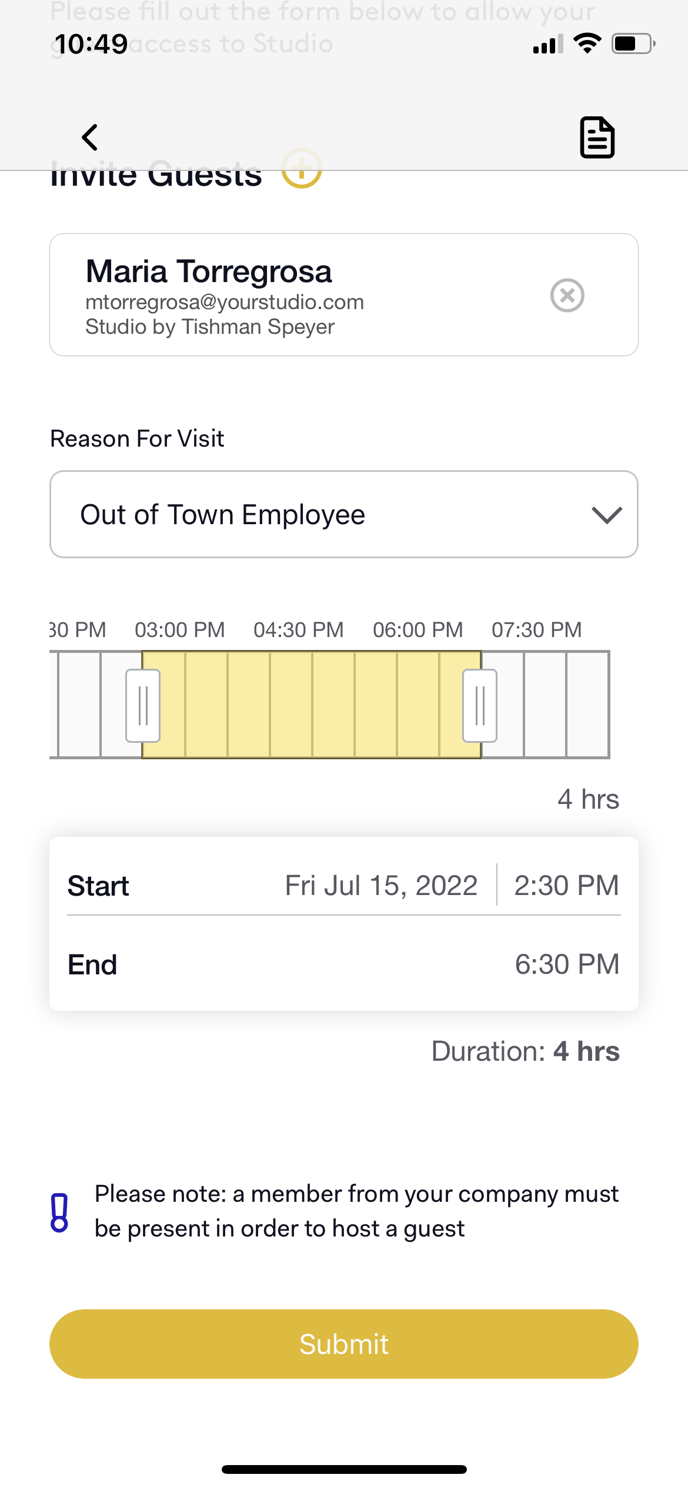
Step 7: Click the "Reason for Visit" dropdown menu and select a reason
Step 8: Use your fingers to pull the time bar to the hours that the visit will take place
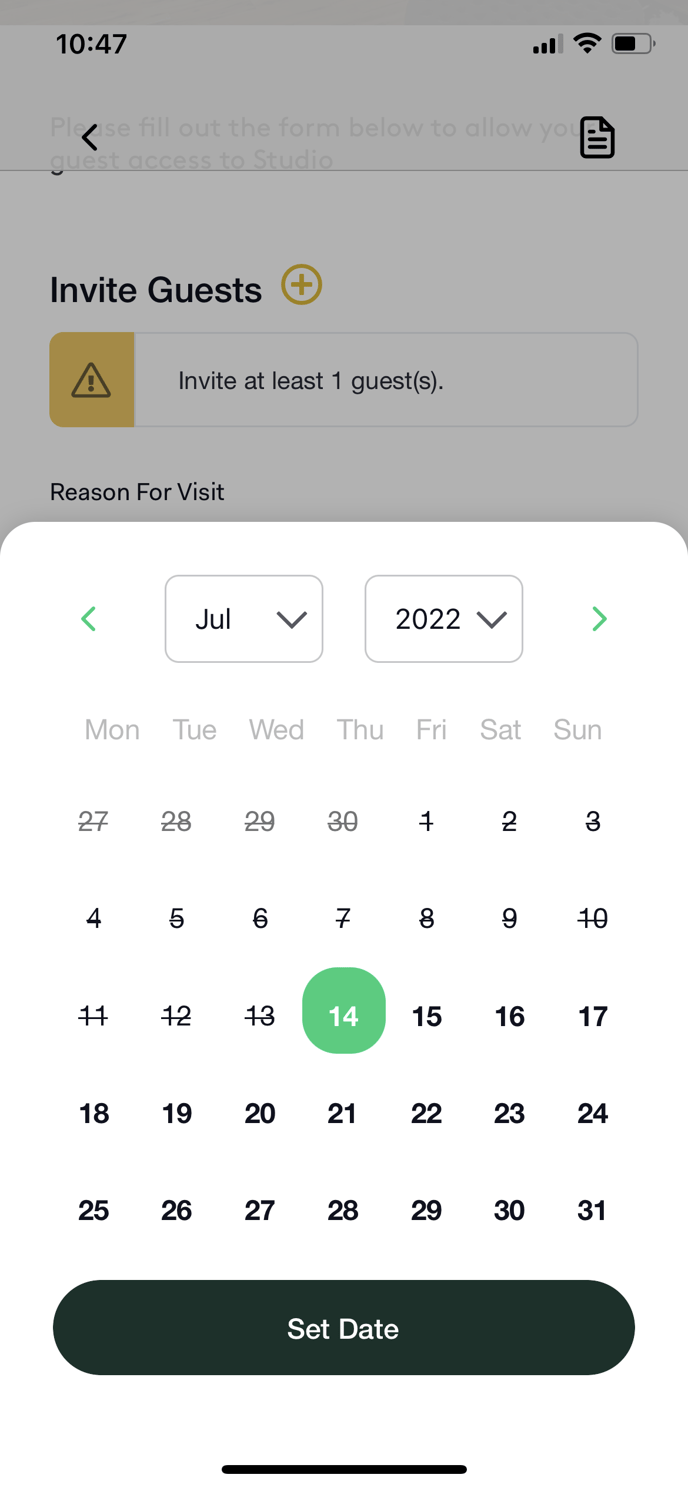
Step 9: Click on the "Start" block to pull up a calendar to switch the date
Step 10: Click on the correct date of the guest's visit -> Press "Set Date"
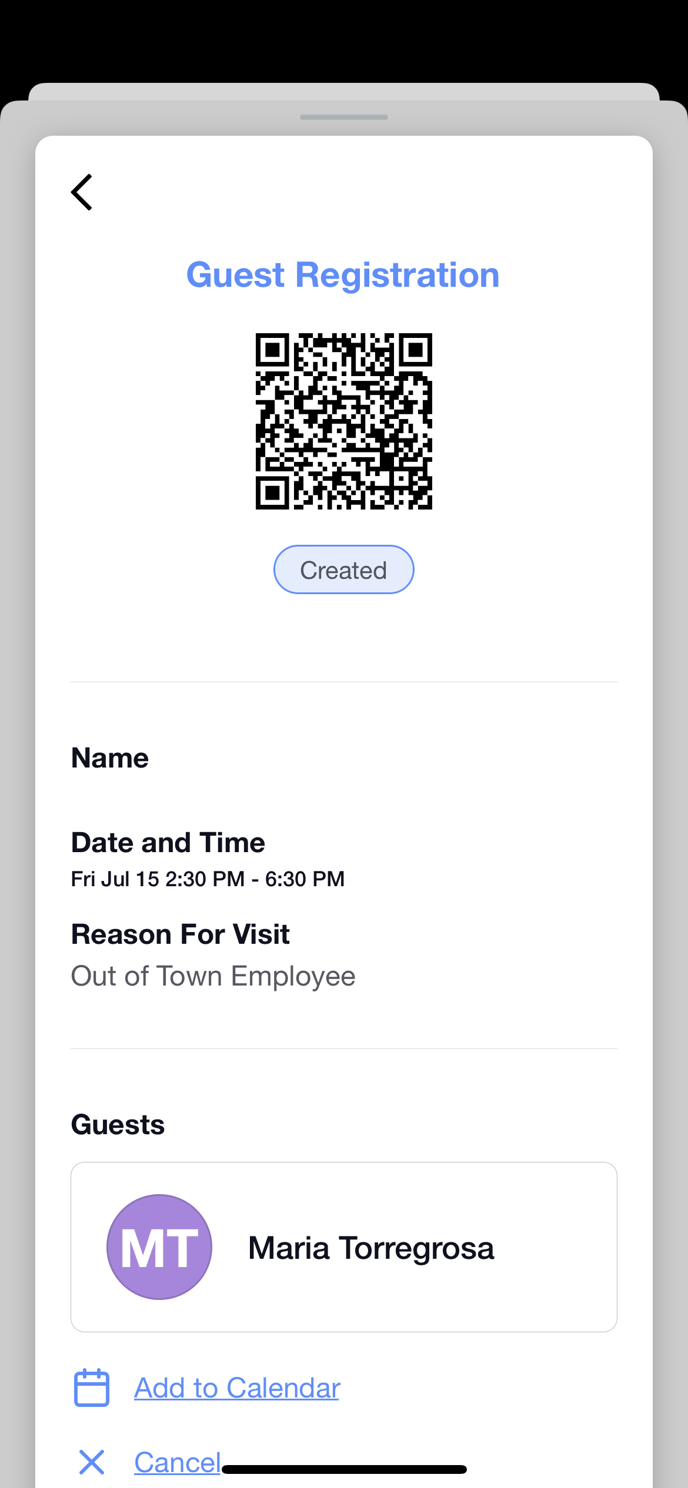
Step 11: Review the information and press "Submit"
Step 12: Review confirmation
Step 13: Click "Add to Calendar" to add to phone calendar *Optional
Was this article outdated or incorrect? Suggest a revision! Still need help? Submit a ticket!