
Security Deposit Workflow

Pre-Knowledge Base Ticket
- Make sure the company has a billing address AND bank account information on file in Yardi
- If they do not have ACH info in the member portal, please have the member add their ACH info to Yardi Member Portal (if they are paying by credit card, we cannot refund via CC, so we still need this ACH info in Yardi).
- If they do not have a billing address on file, Studio Team will have to add this on behalf of the member. Please have someone on your team reach out to the member for their address. You can then add the member billing address to Yardi for the member.
- Invoice any open charges that need to be deducted from the security deposit
- It is best practice to inform the member that these charges will be deducted from the deposit refund so that they do not pay these.
- Ensure the "Payable Refund Payment Method" in Yardi is the way that the member wants to receive the refund. You will see a drop down for ACH and check.
- Yardi > Company > Essentials > Edit (pencil button)
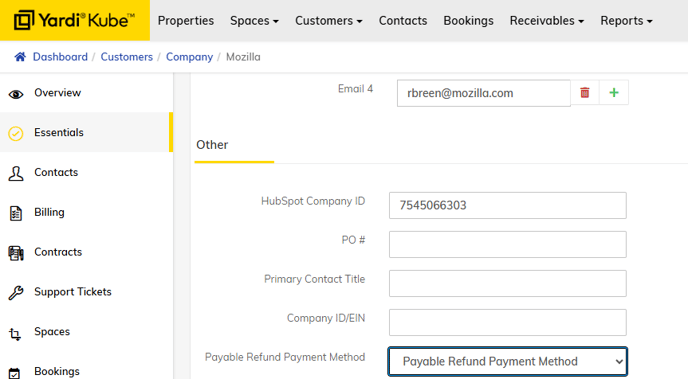
- Yardi > Company > Essentials > Edit (pencil button)
Knowledge Base Ticket
Step 1:
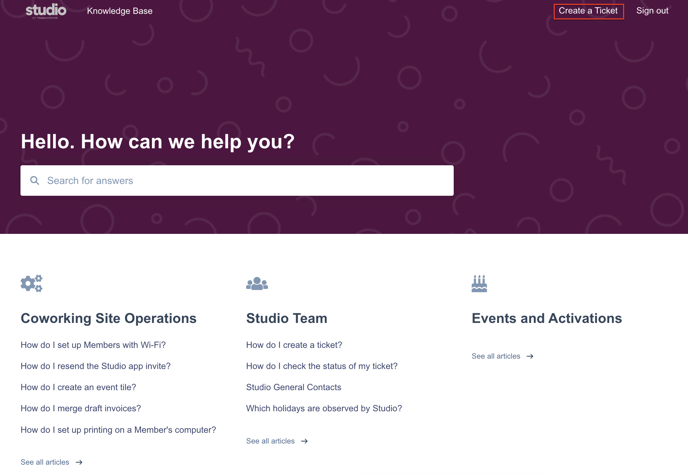
Navigate to help.yourstudio.com. Click "Create a Ticket" at the top right of the page.
Step 2:
Select “Security Deposit Refund” under “Who is the issue with?”.

Step 3:
Enter security deposit on file and open charges.
Step 4:
For a security deposit refund, you will only fill out “Security Deposit On File” and “Open Charges”. If this is a refund, under “Deposit Amount to Remain (for downgrade)”, you will put a value of “0”.
For a credit, you will have to fill out “Security Deposit On File”, “Open Charges” and “Deposit Amount to Remain (for downgrade)”.
Step 5:
- SD Refund or Reduction - choose this if the member is getting either a full or partial deposit refund
- Apply Security Deposit to Open Charges - choose this if the member is not getting any money back and we are keeping the entire deposit.
- For Downgrades, security deposit should ALWAYS be applied to any outstanding balance before returning additional amount of security deposit. Security deposit should not be applied to future rent.
Step 6:
Upload the Yardi Move Out Statement, which is a required field.
Click HERE for article on how to download statement.
*Please make sure to check that any open charges the member has are showing up on this move out statement.*
Step 7:
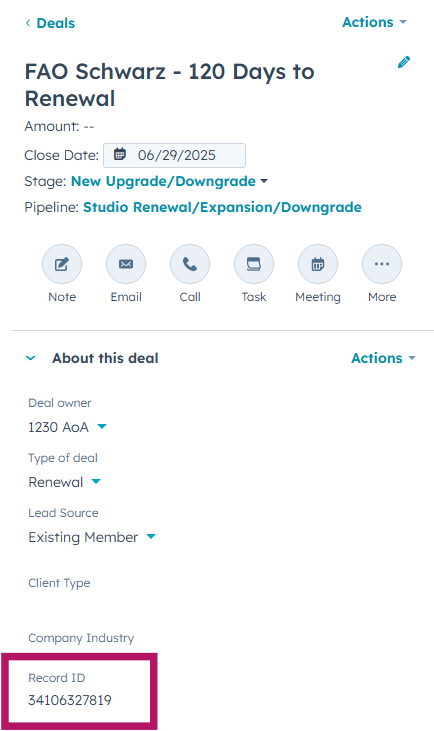
Enter the Deal Record ID. To find the Deal Record ID, navigate to the deal in Hubspot. Copy and paste the final string of digits in the URL into the Deal Record ID field.
Step 8:
Company Address - only need to fill out this section. if member requests check. If you are filling this out, the address must match the address in Yardi Kube.
Step 9:
Security Deposit Refund Method - we should always try to do ACH unless otherwise specified by member.
If the member requests check, please select "check" in the drop down. If the member requests check, please make sure the proper billing address is on file in Yardi prior to submitting this ticket.
Was this article outdated or incorrect? Suggest a revision! Still need help? Submit a ticket!