
Members of the Your Studio App will be a part of separate channels, which allows for distinction between member companies and Studio Location membership. Studio Location channels are set up with the full suite of features including room booking and guest registration. Company channels are basically just placeholders that help tie a member to the company they work for and are not set up with any interactive features.
If a member has their channel set to their company channel they will see an "under construction" page via web or they will only be able to view the profile tab via mobile. This often causes confusion and can lead to a member telling their location team that their app is broken or not working.
There's an easy fix! All the member has to do is switch their channel to the Studio Location channel and voilà! The member will once again see the full suite of features. Please see the instructions below:
Switch location channel via web:
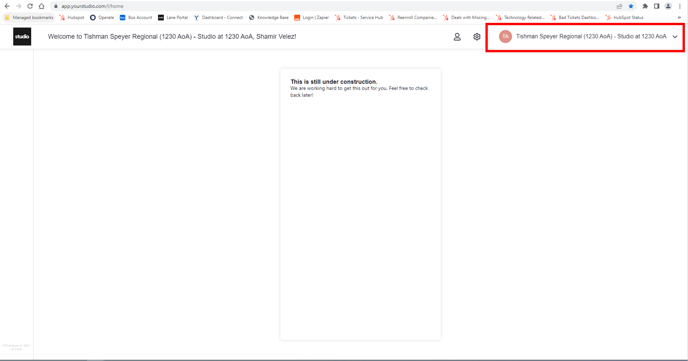
Step 1: Locate the active channel in the top right area of the screen and click the down arrow, or click the name of the active channel to display the Channel Switcher.
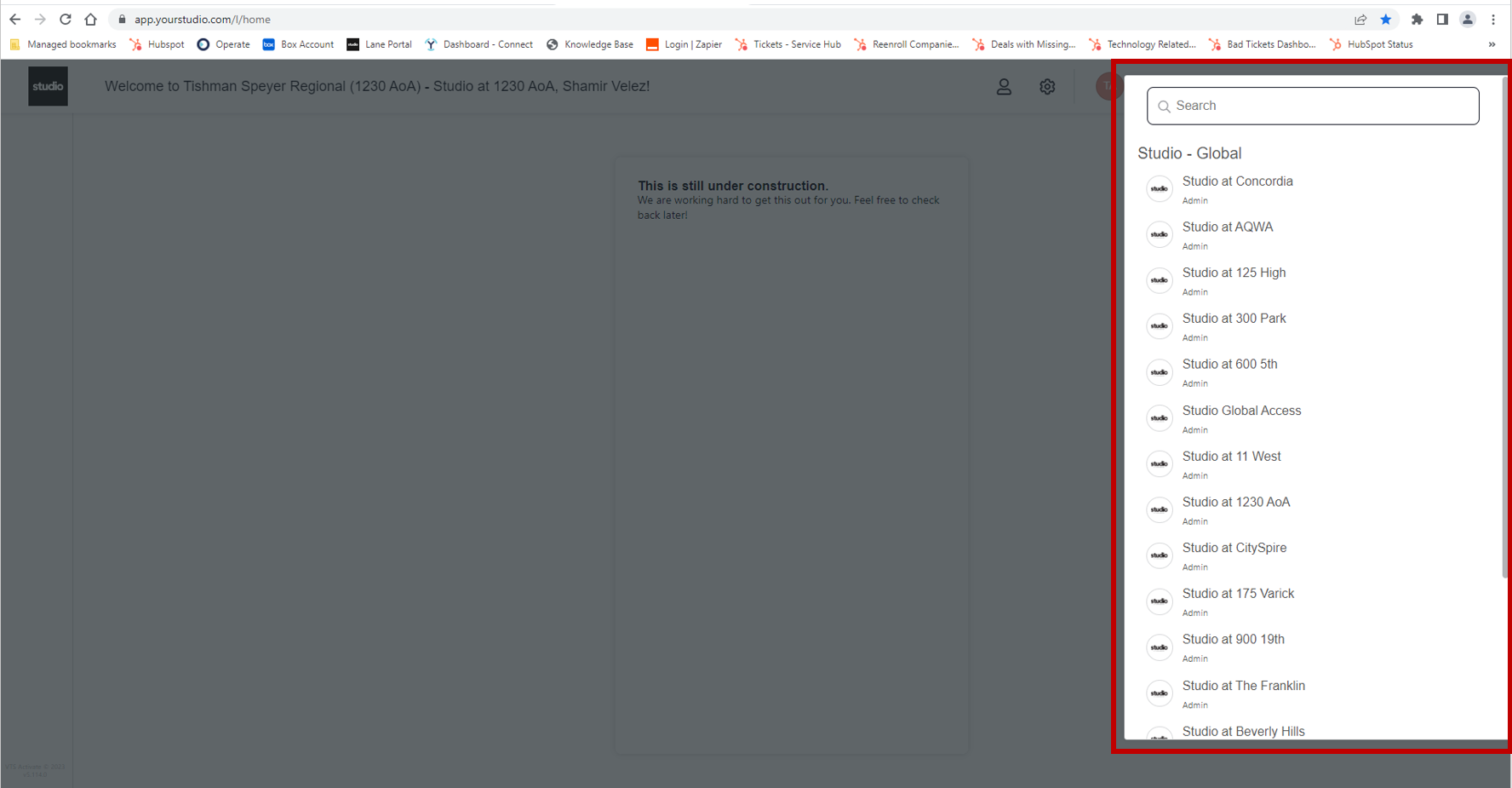
Step 2: From there you will see all of the channels of which you are a member. Find the location channel you want to switch to by scrolling through the list or using the search bar and click on it.
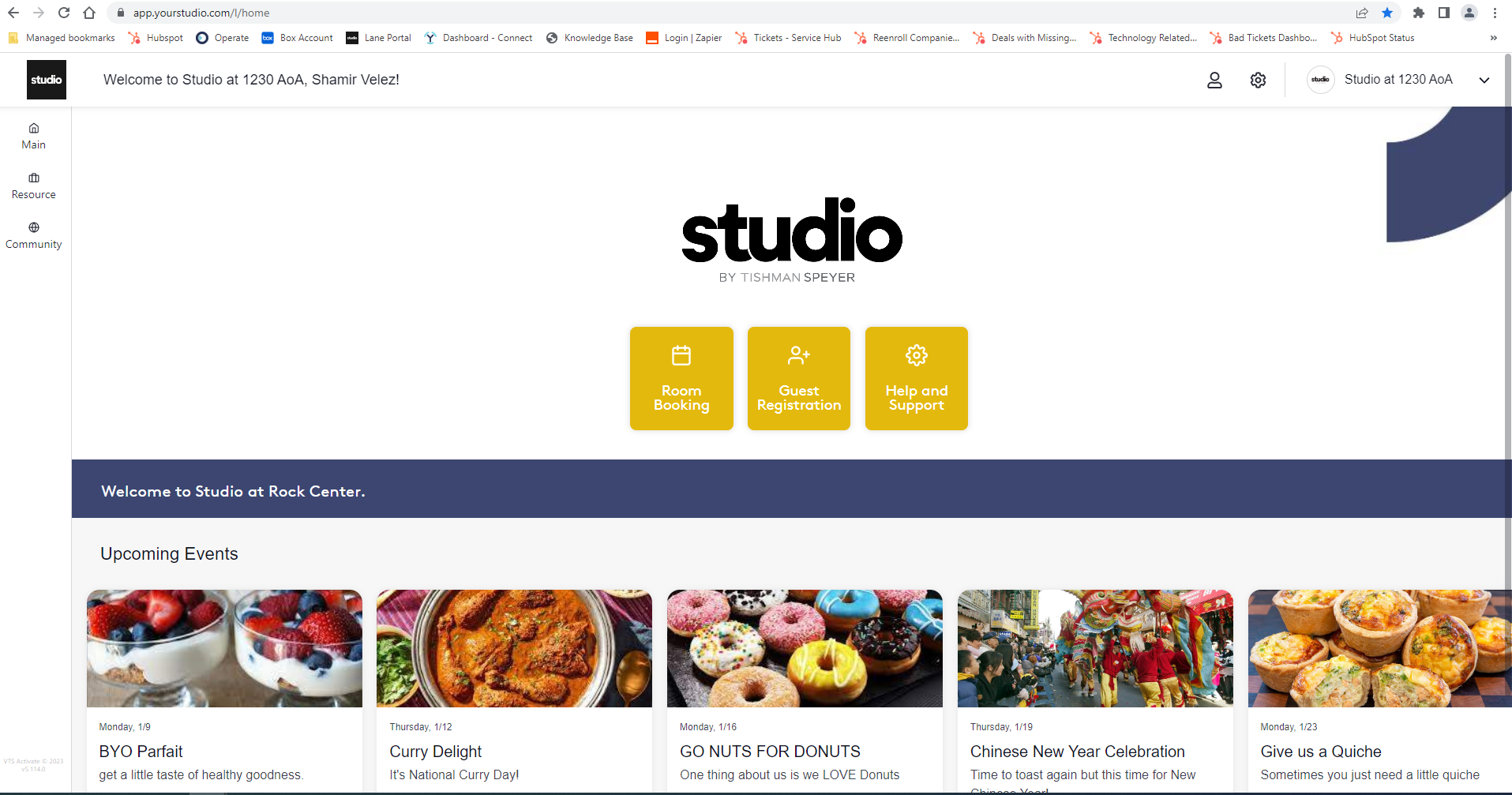
Step 3: After selecting the location channel you want to switch to, you will be taken to the home page of the new channel.
Switch location channel via mobile:
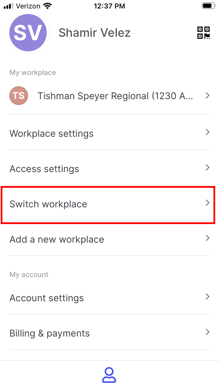
Step 1: Select the the Profile tab on the bottom of the mobile app.
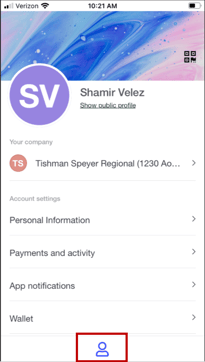
Step 2: Select Switch Workplace. This will open the channel switcher.
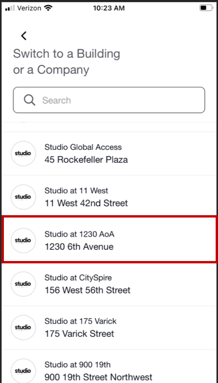
Step 3: Find the channel you want to switch to by scrolling through the list or using the search bar and tap on the name of the channel you want to switch to.
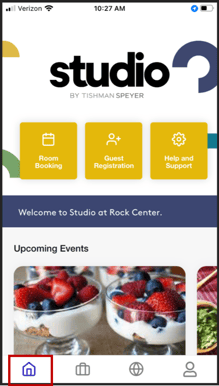
Step 4: Tap on Home tab and you will be taken to the new channel
Was this article outdated or incorrect? Suggest a revision! Still need help? Submit a ticket!