
Step 1 -
Add your email correspondence to your locations New Lease Documents Folder in Box with the member confirming their request to vacate/terminate.
Step 2 -
In Yardi, navigate to the company page and click the active contract.
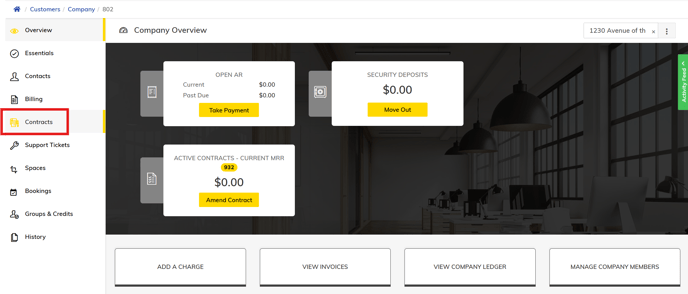

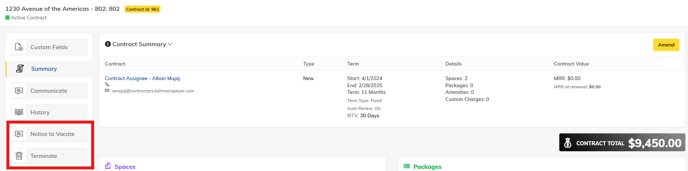
On the left-hand menu - select "Notice to Vacate"
- Enter the date that the member gave their notice
- Enter the move out date
- Optional - assign the member who supplied notice
- Explain the reason that the member is terminating (moving to direct space, moving to WFH, moving to competitor, etc)
You will see the green "Active Contract" terns to Yellow "Pending NTV"
Step 3 - Right after providing "Notice to Vacate"
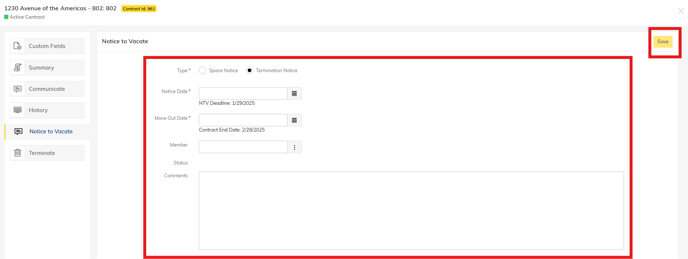
In Yardi on the left hand menu - select "Terminate"
Select the date they are leaving
Give the reason from the dropdown menu, provide comments to Karina
Step 4 -
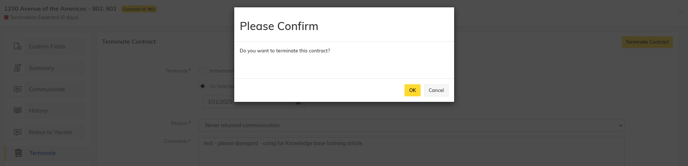
Click "Terminate"
This triggers Karina's workflow and begins the offboarding steps for Karina & Shamir
You will see under the contract "Termination Expected (# of days left)
OFFBOARDING -
All workflows are automatically triggered for Shamir and Karina to terminate the contract. You do NOT need to submit an offboarding ticket in Hubspot.
Step 5 - Onsite Team
Onsite Teams are responsible for deactivating keycards and beginning the steps for Security Deposit Refund.
CLICK HERE for "How to Process a Security Deposit Refund"