
Step 1:
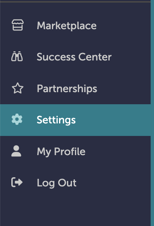
On the left-hand navigation bar, scroll down to “Settings”.
Step 2:
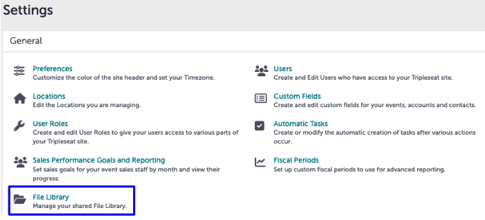
In the Settings window, click “File Library”.
Step 3:
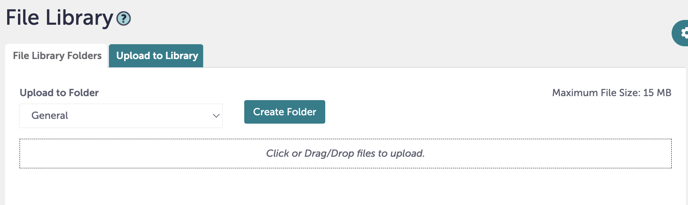
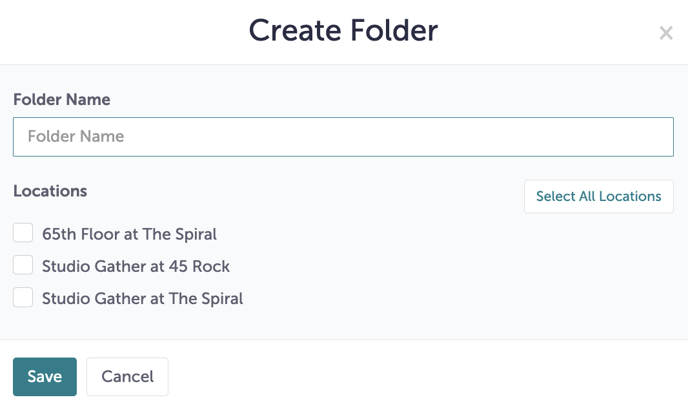
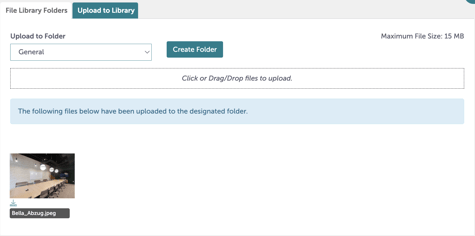
Click the second tab you see, which is “Upload to Library”. First, you will create the folders you need, most likely by location. Click “Create Folder”. A window will pop-up giving you options to name your folder and to assign it to particular locations.
 Step 4:
Once your folder has been created, you can begin to either click or drag and drop your files into your folder. You may also choose to upload your files into an existing folder.
Step 5:
When a file has been successfully uploaded, you will see a message saying: “The following files below have been uploaded to the designated folder.” These files can now be used across Tripleseat.
Step 6:
Was this article outdated or incorrect? Suggest a revision! Still need help? Submit a ticket!