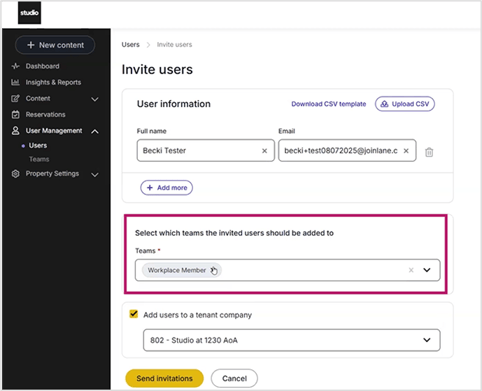
To add a new user, log into Activate > User Management from left-side menu > Users. Click “Invite new users” button to start the process.
Make sure you have the correct location selected on the top right corner.

Step 2:
Add user’s full name, email address, and Teams. Email address must be right! This cannot be changed!
“Workplace Member” under Teams is automatically selected (Do not change this). You can add more than one user at a time. Check off “add users to a tenant company” and select the company from the drop-down list. Click “Send Invitations” when done.
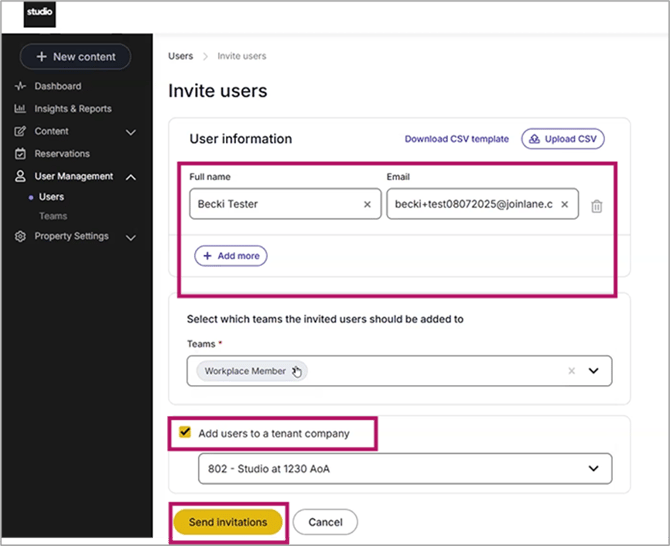
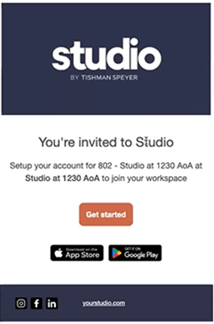
At this point, the new user will receive an invitation email and they must click “Get Started” button in the email to activate their account. Member must follow the prompts to verify their information. Sample of email is here below:
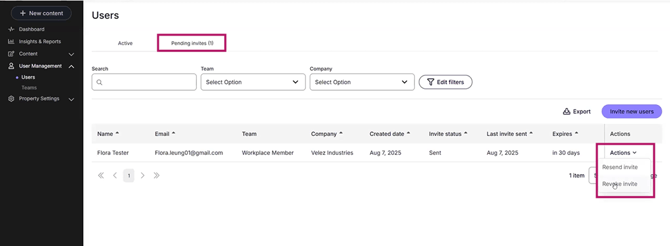
Resend Invite:
If member is asking you to resend an invite. Go to the “Pending invites” tab and select the user you want to action on. Click “Action” next to the name and select either Resend Invite.
Tag Users & Grant Billing Access:
Only designated billing contacts have access to view invoices. These users will see the Invoice button located under “Resources” in the Studio App.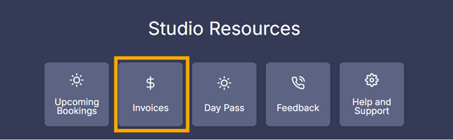
To give a user billing access in VTS, go to Setup/Invite New Users and select “Billing” under Teams. Be sure to keep “Workplace Member” checked as well. Continue with the steps on adding a new user.