
Welcome! We are so excited to have you with us!
This plan is not meant to provide a strict schedule for your on-boarding, instead, the plan is meant to guide you through your first day at Studio. Some sections may be covered on different days depending on trainer’s schedule and your manager’s discretion.
Happy Training!
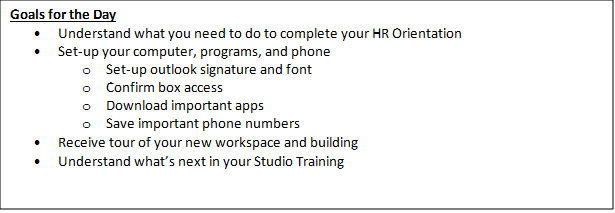
DAY 1
HR Orientation - Conducted by Zach Becker (HR Generalist- Outside NYC) or Matt Orlando (HR Manager- NYC).
In HR Orientation, you’ll receive information on all the company HR procedures, practices, and systems including Workday, TS Connect, benefits, PTO, etc.
After orientation, you’ll be responsible for completing any forms needed (taxes, benefits, direct deposit etc.) and trainings (workplace conduct, etc.). Please make sure that you know when the forms and trainings are due – feel free to complete at the end of your first day or whenever you have free time.
IT Orientation- Conducted by IT Analyst.
In IT Orientation, you’ll receive information on our company’s IT procedures, practices, and systems including Microsoft Office suite and using IT ServiceDesk.
Any IT issues? You can email tishmanspeyer@service-now.com or call the 24/7 Tishman Speyer IT phone line at 212-715-0301.
Studio and Building Tour- With your manager.
Your manager will give you a tour of your Studio space:
- Front Desk
- Mailroom
- Storage Spaces
- Pantry
- Printing stations
- Meeting rooms
- Phone booth locations
- Locations of notable tenants
- Emergency exits
You’ll also get a tour of the building/campus. Please take note of the following:
- Entrances / Exits
- Building front desk
- Freight/Loading dock area
- Common lounges and restrooms / ZO Spaces
- Property Management Office
- Mailroom (if applicable)
Computer Setup- On your own.
You will be given a computer to use for work. You are welcome to bring your laptop home or leave it in a secure spot in the office.
Setup your signature in Outlook
Outlook is the program we use for e-mails.
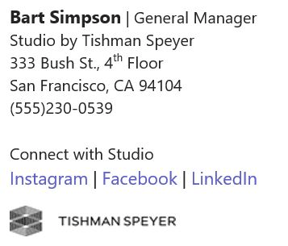
- Copy this signature format:
- In Outlook, select File > Options > Mail > Signatures…
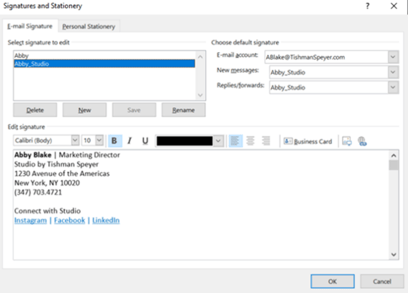
- You have the option to either create a new signature or edit an existing one. Create a new signature for yourself and call it “(Your Name)_Studio.
- Paste above signature format into the “Edit Signature” field and edit to reflect your own information. Please note that font should be Calibri (body), size 10.
- On the upper right, please make sure that this new signature is being used for both new messages and replies/forward
- Select “OK” to save
Setup your e-mail font
- In Outlook, select File > Options > Mail > Stationary and Fonts…
- You will need to change the font for all three fields: new mail messages, replying or forwarding messages, and composing and reading plain text messages.
- Select Calibri (body), size 11 for all fields.
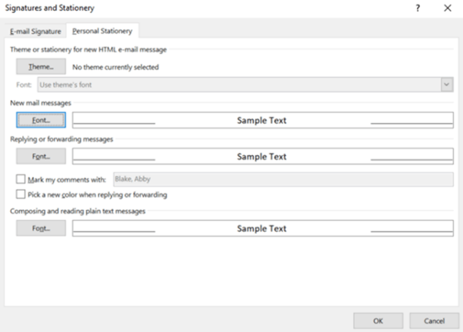
- Select OK all the way back out to save your changes.
Configure your Outlook to Enable HubSpot Add-In:
Please follow this Knowledge Base article link: HubSpot Add-In Article
Meet your team on Microsoft Teams
Teams is the chat system we use to communicate within our company. You can chat with your teammates individually or in groups.
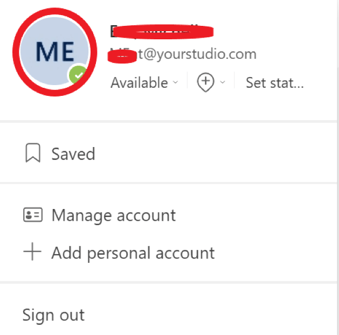
- Update your picture- Click the circle in the upper right hand corner (with your initials) and then again when the box drops down to upload a new picture.
- Teams Channels- Your manager will introduce you and add you to these groups.
- Studio Teams- General chat for all onsite Studio team members. Chat for onsite Studio team where we share pictures and ideas for member events.
- Squads, Squads, Squads- Chat for the entire Studio team where we share deals.
- Studio Ambassador or Studio Managers – This chat is for all ambassadors or all managers.
Box
Box is the cloud-based program that Tishman Speyer uses to manage documents. You can upload and retrieve documents from any device when accessing the box. Where possible, you should use the box vs. saving to your desktop.
You will be provided with your own box folder and will have access to Studio’s co-working box folder. Please verify that you can access the co-working box folder.
Shared Mailbox
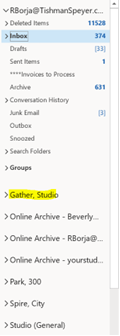
Besides your work e-mail box, you’ll also have access to your location’s share mailbox ([LocationName]@yourstudio.com). Communication that is intended for the entire team will go to this mailbox, and it provides an easy place for your team to manage member/vendor communication.
You’ll see this mailbox listed below your inbox (picture below). Your manager will let you know how the mailbox is organized.
Phone Setup- On your own.
You will be given an iPhone to use for work and it should be treated like work equipment, and it should always be kept on you. You can work with your manager if you want to order a phone case. If at any point you do not want to carry two phones, you can contact IT to switch your personal number to Tishman Speyer’s account.
Apps to download:
- Microsoft Outlook – Work e-mail on your phone
- Microsoft Teams – Work chat on your phone.
- Microsoft Authenticator Comp Portal - Security apps required in order to use outlook and teams on your phone
- Studio - Our App!
- LiveSafe - Tishman Speyer’s Security communication app
- ZO app – Tishman Speyer’s amenities platform
Phone numbers to save:
- Your manager’s phone number
- Your Studio’s front desk number
- Security front desk number
- Property Management Office number
- Tishman Speyer IT phone number (212-715-0301)
System Setup Emails- On your own.
While going through your emails, you’ll see several emails that will help get you connected to important systems. Please activate your account. These systems will be reviewed later in training.
- “Studio: Your Wi-Fi Credentials” // from connect@essensys.tech
- Operate Invitation
- Connect Invitation
- Studio App/Lane Invitation
- Co-Working shared Box Drive invitation
- Angus work orders invitation
- Guest registration invitation (iVisitor or CloudGate)
Social Media Setup – On your own. Please note, this is suggested and not mandatory. Do whatever you are comfortable with!
Follow Studio on Social Media
Setup your LinkedIn when you feel appropriate.
- Navigate to your profile on LinkedIn.
- In the Experience section, select the “+”.
- Add your current role, selecting Studio by Tishman Speyer as the company.
- Under “Description,” please add: “Studio offers flexible workspaces that work for you. From flex desks to private offices to customized suites, find the perfect workspace for you and your team in an exceptional environment, backed by Tishman Speyer’s 40 years of expertise. No matter what you're looking for, you'll find it at one of our global locations.
- Hit “Save”.
- At the top of your profile, select the Pencil near your picture.
- Update your headline so that it includes “Studio by Tishman Speyer,” not just “Tishman Speyer.”
- Welcome & Training Overview - With site’s Regional General Manager
- Welcome to Studio
- Training overview
- Main contacts and available resources – your manager will put calendar invites on your schedule for specific meetings you will have to begin learning about all aspects of the business, including Finance, Sales, Operations, etc.
Congratulations - you have completed your first day at Studio. We are so excited to have you. Please click here for Days 2 - 5 Training Guide.