
Yardi Kube requires manual verification (penny test) for all newly added bank accounts to ensure the account details belong to the member and are valid for ACH transactions. The verification process uses a small microdeposit that must be confirmed by the member. Until this step is completed, the account will remain in a Pending state, and autopay or invoice payments will fail.
Common Symptoms
• “The member says their bank account shows as pending.”
• “The member isn’t able to make payments yet.”
• “The member doesn’t know how to verify their penny test.”
• “The member says they never got the verification deposit.”
How to Fix It (Action Steps)
Guide the member through the following steps to verify their bank account in the Studio App or Member Portal:
Access Account Settings
• The member logs into the Member Portal (app.yourstudio.com).
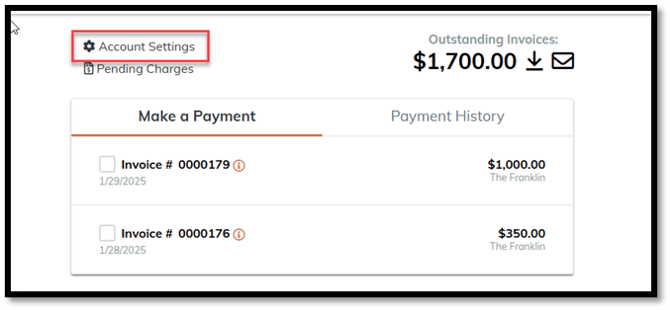
• Select the My Account tile, then choose Account Settings.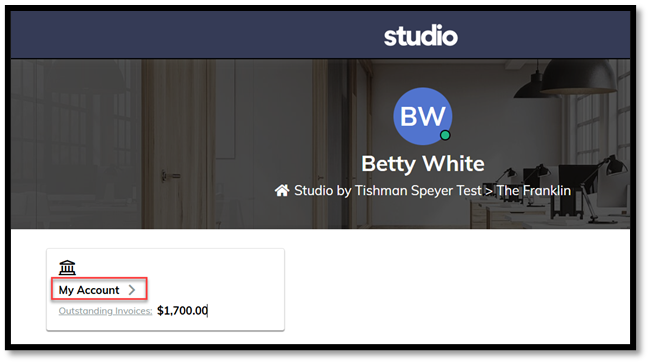
Add a Bank Account
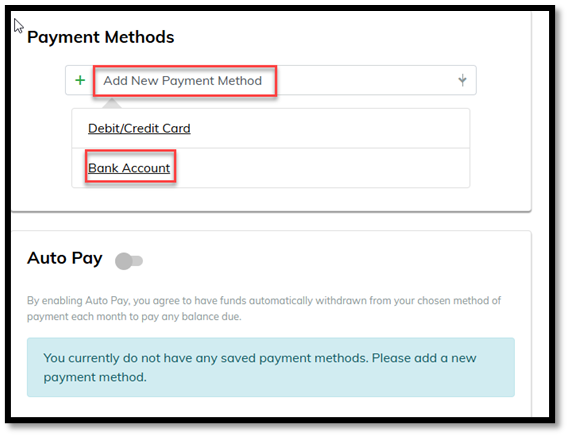
• Click Add New Payment Method, then select Bank Account.
• Enter all required fields (account number, routing number, account type).
• Select Save.
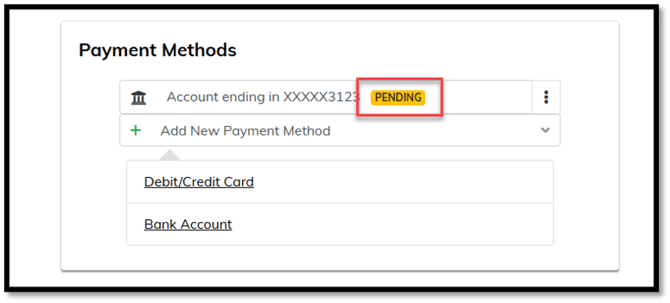
• The account will appear with a Pending status.
Wait for the Microdeposit (Penny Test)
• A small deposit (e.g., $0.27 or $0.38) will appear in the member’s checking or savings account within 24–72 business hours.
• The transaction description may appear as “Yardi Penny Test” or “Yardi ACCTVERIFY.”
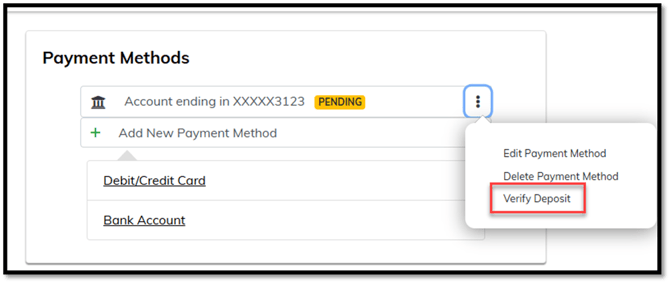
Verify the Deposit
• Once the deposit appears, the member should return to Payment Methods in the Member Portal and click Verify Deposit.
• The member must enter the exact deposit amount in decimal format (e.g., if the deposit was $0.45, enter 0.45).
• The member has three attempts to verify correctly.
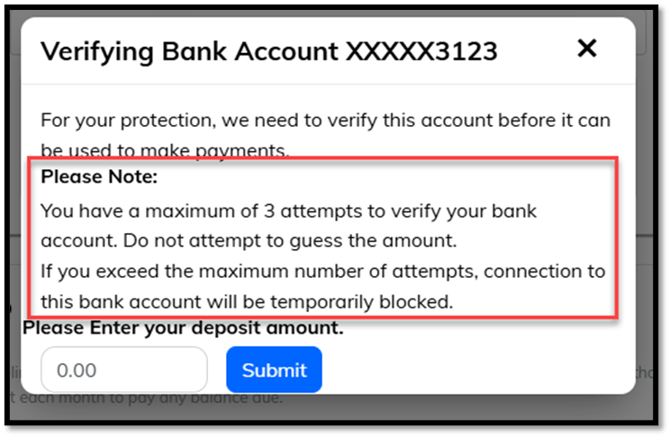
If Verification Fails or Expires
• After three failed attempts or if the verification expires, the test cannot be restarted by the member or site team.
• Submit a Yardi Technical Support ticket with the issue type “Banking/Autopay Issue” so Studio Support can contact Yardi to reset the verification process.
Operator Access (Optional)
• If the onsite team has access via the Operator Portal, they can view the member’s payment method and confirm how many verification attempts remain.
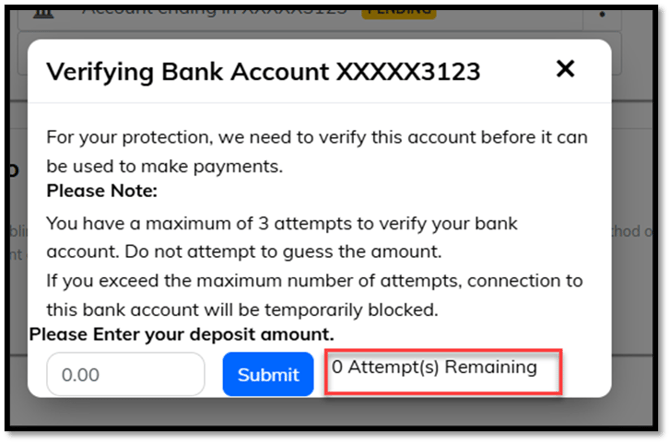
Quick Summary
• Root Cause: Bank verification is required for ACH payments and must be confirmed via microdeposit.
• Fix: The member verifies the penny test deposit in the Member Portal within three attempts. If failed or expired, Support must request a reset from Yardi.
• System Behavior: Bank accounts remain “Pending” until verified; verification resets can only be done through Yardi Payment Processing.
Tags
Yardi Kube, Studio App, Member Portal, bank verification, penny test, ACH, payment method, autopay, banking/autopay issue, Finicity, pending account