
Step 1: Create a USPS account for each Studio location at https://www.usps.com/
Step 2: Order USPS Priority Mail Flat Rate envelopes, size 9.5" x 12.5" (free from USPS).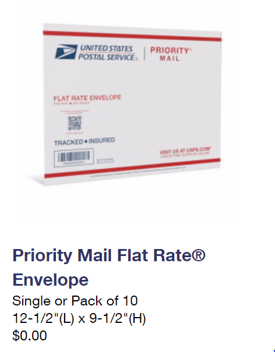
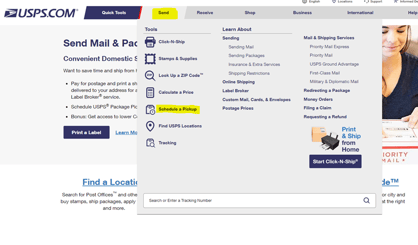
- Choose box to “Pick up during regular mail delivery”
- Schedule Recurring Mail Pickups or one-off pick-ups, depending on frequency needed.
- Enter site address for pickup, and click “Check Availability”
- Add “Location of your packages” as “Reception”
- When should we schedule your pickup? Choose a day: click on “Recurring Pickup Tool”. Choose Monthly pickups, repeating every 1 months, for the first Friday of each month. Start w/ recurring pickups for 1 year.
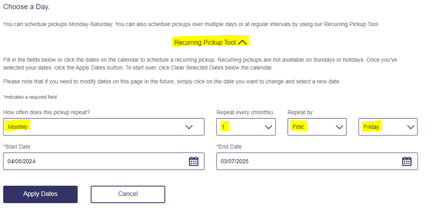
- How many packages are we picking up? Choose “Priority Mail” option, and enter the number that equals your current Virtual Office licenses that include mail forwarding services.
- Click "Schedule Pickup".
- Print label through the USPS website:
- Step 1: Navigate to the "Send" tab in the USPS account. Click on "Click n' Ship" from the dropdown.
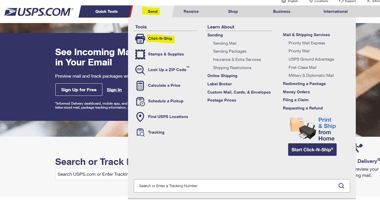
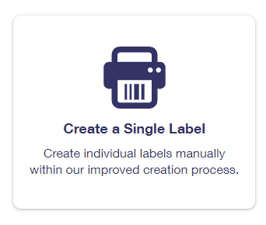
- Step 2: Navigate to "Create a Single Label":
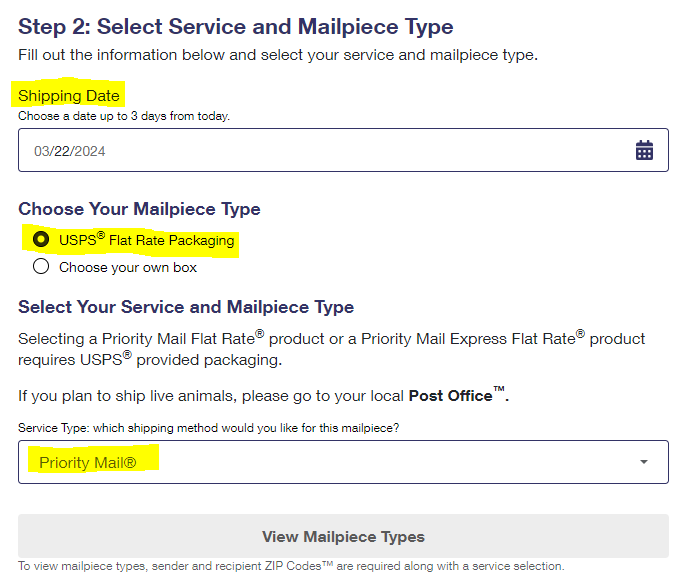
- Step 3: Fill out recipient details, including name, delivery address, shipping date (the Friday this will be shipped out on), and "USPS Flat Rate Packaging": see below.
- Step 2: Scan this label in PackageX to notify the member their envelope has been scheduled for pickup.
- Step 1: Navigate to the "Send" tab in the USPS account. Click on "Click n' Ship" from the dropdown.
- Place priority envelope in USPS black box at the front desk.
Was this article outdated or incorrect? Suggest a revision! Still need help? Submit a ticket!