
Step 1:
If this booking is the result of a new lead, you will need to enter a new lead first. Click "Leads" on the left hand navigation bar.
 Step 2:
Click "+New Lead" near the upper-right hand corner.

Step 3:
Enter the details of the lead. Tripleseat will display a list of similar leads. If the lead is a duplicate, please merge with an existing lead. If it is a new lead, please enter the lead details. You will then enter booking details. Click "Create".
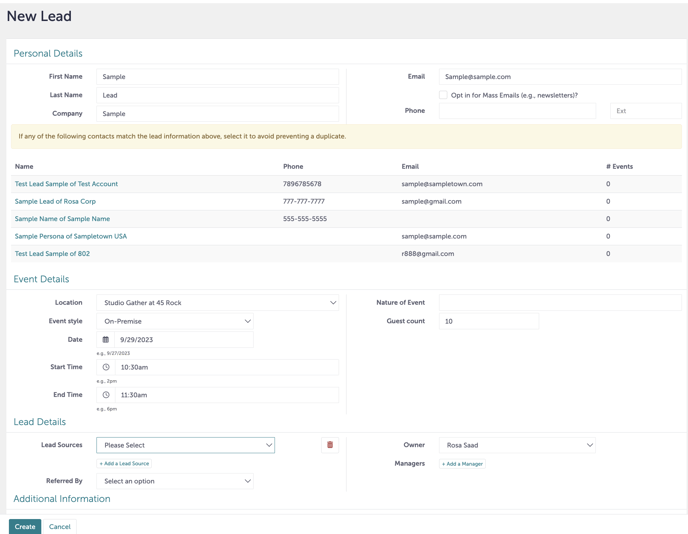
Step 4:
You must now convert this lead. Click "Convert this Lead".
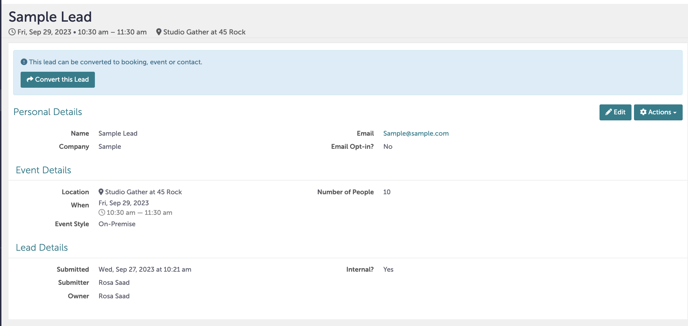
Step 5:
Double check again that this lead cannot be merged with an existing lead. If it can be merged, please merge the lead to avoid duplicates. If this is new, click "No Matches - Continue".
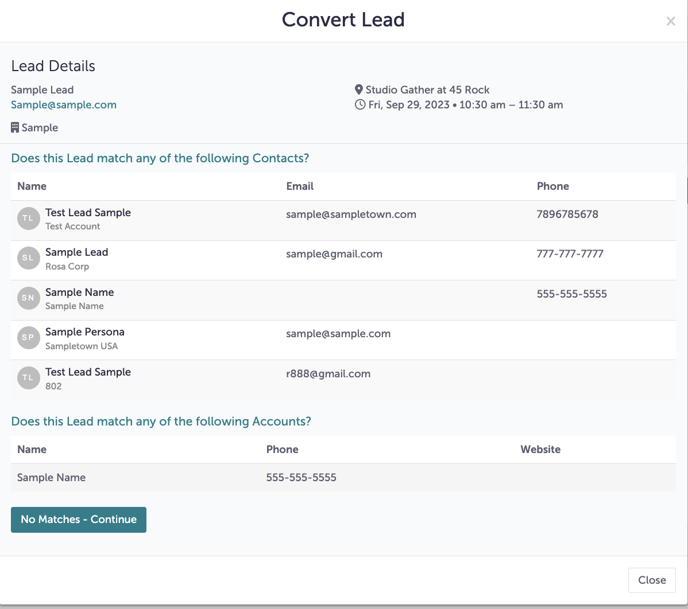
Step 6:
Convert this lead into a new booking.
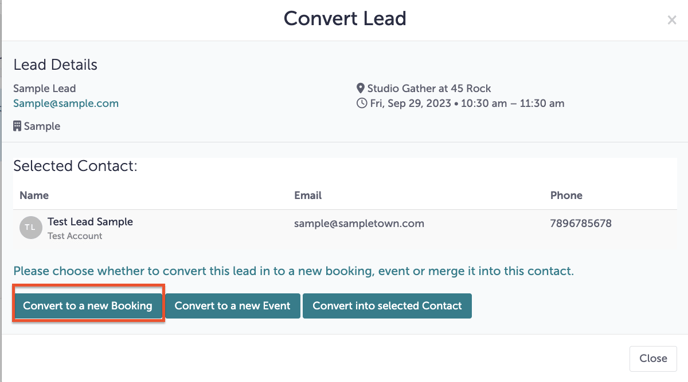
For a review on how to create bookings and events, please refer to this Knowledge Base article.
Step 7:
Once you have room rental and event details have been captured, you can start to send documents to the client. Navigate to the "Master Docs" tab in your booking.
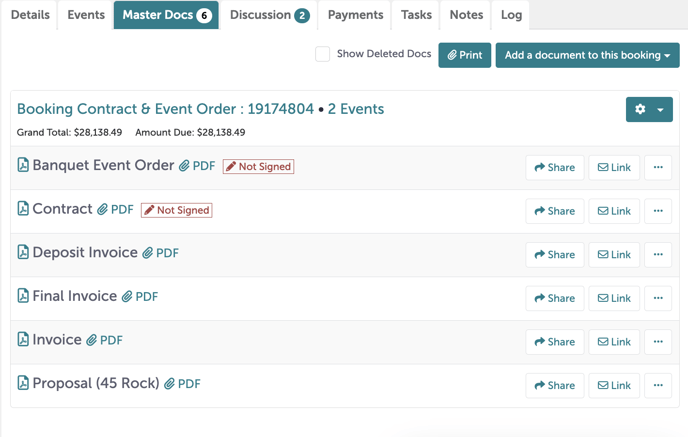
For a review on how to create Master Docs, please refer to this Knowledge Base article.
Step 8:
You will share the Proposal document with the client by clicking "Share" next to the document. Sharing a document with the client will activate the Guest Portal. This document will show up in the client’s Guest Portal, and they will also receive an email. Change the status of the event to "Tentative".
.gif?width=640&height=408&name=Bookings%20-%20Studio%20Gather%20-%20Tishman%20Speyer%20-%20Tripleseat%20(23).gif)
For a review on client communication within the Guest Portal, please refer to this Knowledge Base article.
Step 9:
The contract requires that you navigate to the “Booking” tab during document creation and update [INSERT EXISTING TENANT INSURANCE CLAUSE HERE OR DELETE]. This area has been highlighted for you. You must select this line, and either:
- delete this line if the guest is not a tenant, OR
- add the tenant insurance clause if they are a tenant. You can add the template by highlighting the sentence, clicking “Templates”, and selecting “Existing Tenant Insurance Clause --> Existing Tenant”.
-1.gif?width=640&height=346&name=Studio%20Gather%20-%20Tishman%20Speyer%20-%20Tripleseat%20(2)-1.gif)
Step 10:
Once the proposal has been approved, your next step is to share the Contract and Deposit Invoice with the client. This document will show up in the client’s Guest Portal, and they will also receive an email confirmation.
For a review on the Guest Portal, please refer to this Knowledge Base article.
Step 11:
In the guest portal, the client will now:
- Sign the contract
- Authorize their credit card or bank account
- Pay their 50% deposit in the Payments tab.
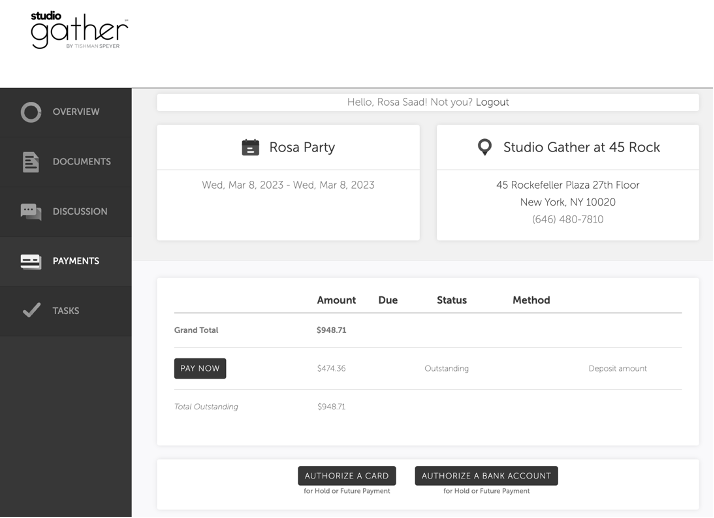
Step 12:
Once the deposit has been paid, Tripleseat will show a small green “Paid” icon.
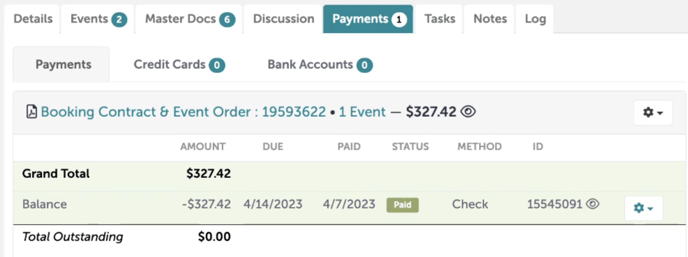
Step 13:
It now time for the “Sales Handoff” email to the onsite team. The onsite will communicate with the client through Tripleseat to finalize details around the event. You may now change the status of the event to "Definite".
For more information around client communication and the guest portal, please refer to this Knowledge Base article.
Step 14:
Once details have been finalized, the Banquet Event Order and the Invoice for the event will be sent out. These documents will show up in the client’s Guest Portal, and they will also receive an email confirmation. The client must fully pay the invoice at least 10 days before the event occurs.
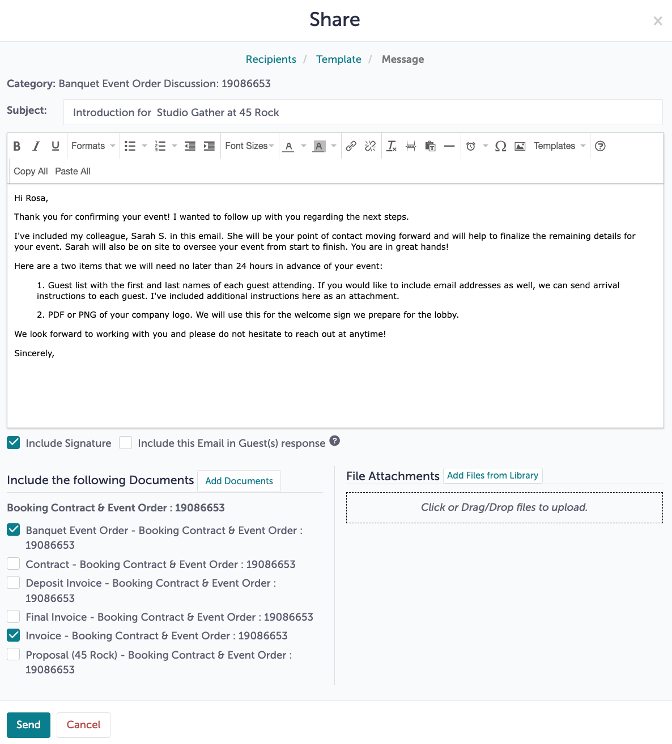
Step 15:
The event has successfully occurred. The final invoice will be sent to the client with any outstanding, day-of charges.
Step 16:
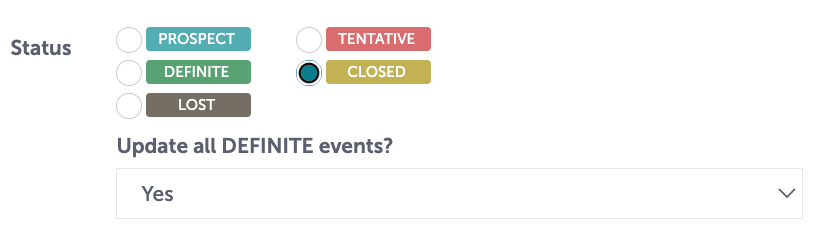
Once payment is complete, change the status of the event to “Closed”. Tripleseat will ask if you want to update all events; you should select "Yes".
Step 17:
Was this article outdated or incorrect? Suggest a revision! Still need help? Submit a ticket!